
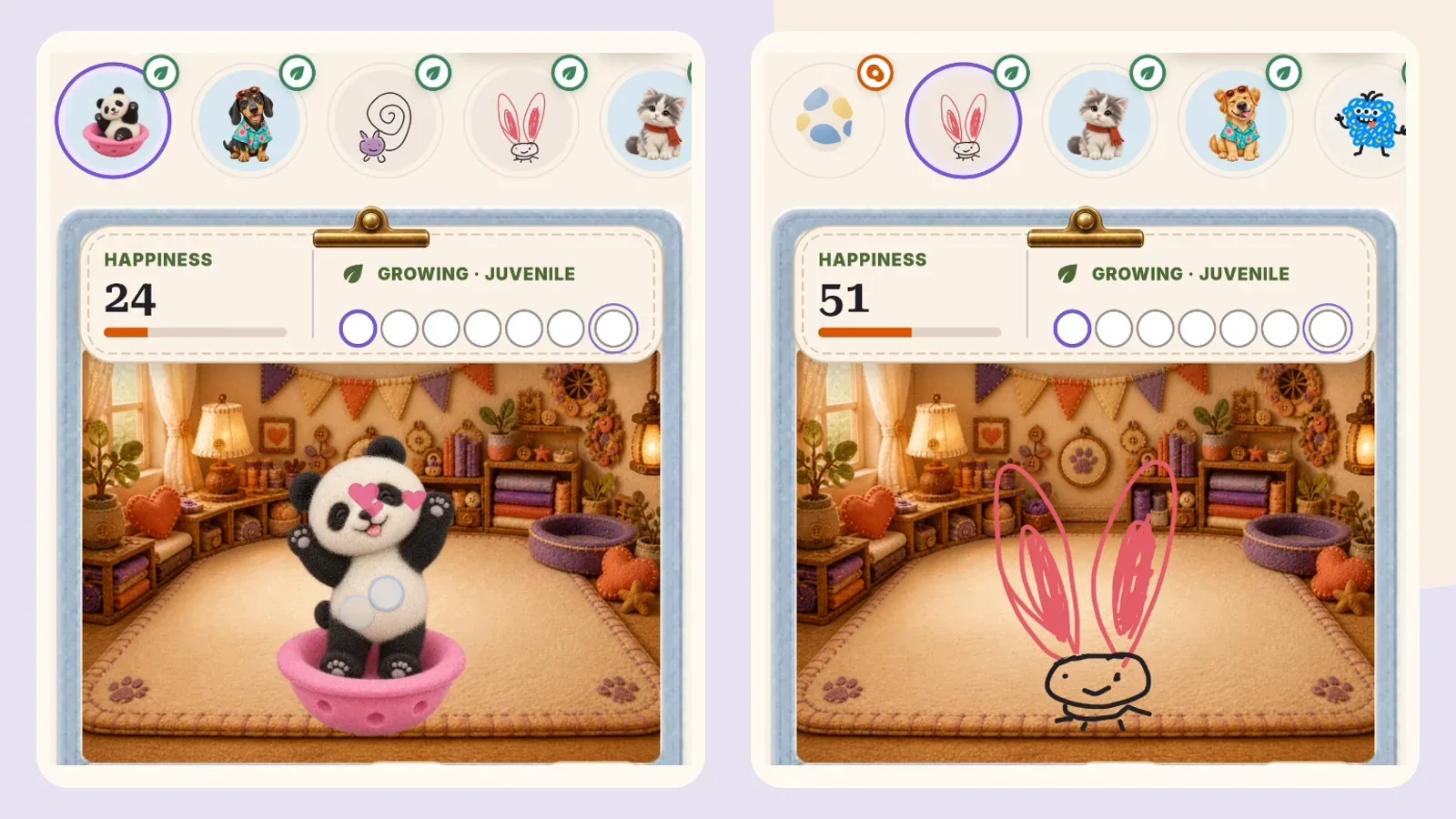
You do not need to replace your first PetPip companion to make another. Add a new companion from Create, then open Paws and tap a portrait in the horizontal row to choose the pet you want to visit. Swipe the row sideways if you have more companions than fit on screen.
Check the selected portrait and the character in the room before feeding or making changes.
The cover combines two separately recorded Paws views to show different companions.
1. Add the next companion from Create
Open the Create tab and choose the starting point for the companion you want to add:
- Photo: select a picture, review the style choices, and confirm a personal creation.
- Draw: choose Start drawing, make your character, then review the style and creation choices.
- Discover: browse available ready-made companions and follow the adoption or access shown for that pet.
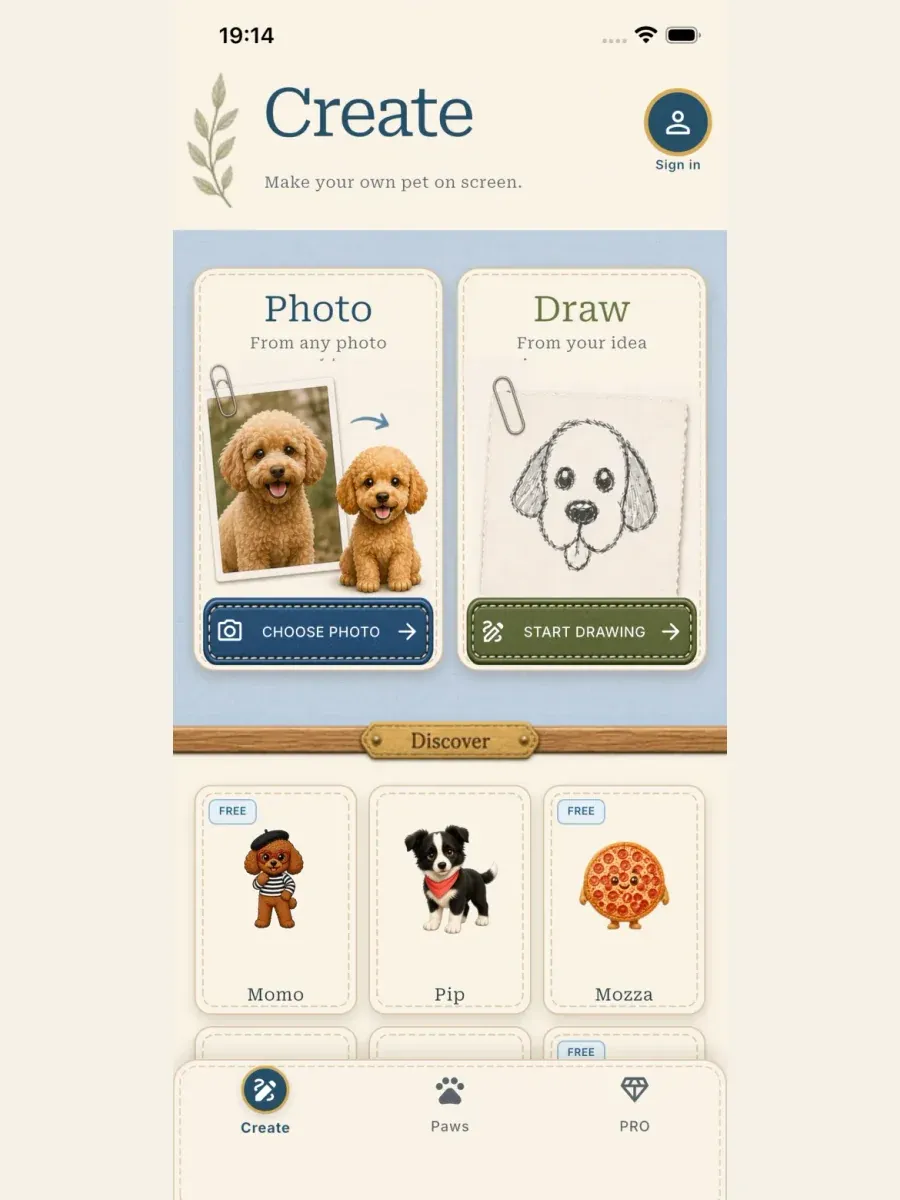
Use Create for another companion; you do not have to remove an existing pet to begin.
For personal AI creations, check your generation allowance before confirming. Creating a new result requires an internet connection and available credits. Official pets can have different access requirements, including PRO choices; check the access displayed for the companion you want.
If a creation is already running, let it finish before starting another. Review the result and complete any name or Add to Paws confirmation the app presents, then continue to Paws. A new companion may still be an egg; adding it does not skip its hatch stage.
Use the photo creation guide or drawing creation guide when you need the full preparation steps.
2. Find the portrait row in Paws
Open Paws from the bottom navigation. Near the top, below the active pet’s name, you will see a row of round portraits or eggs.
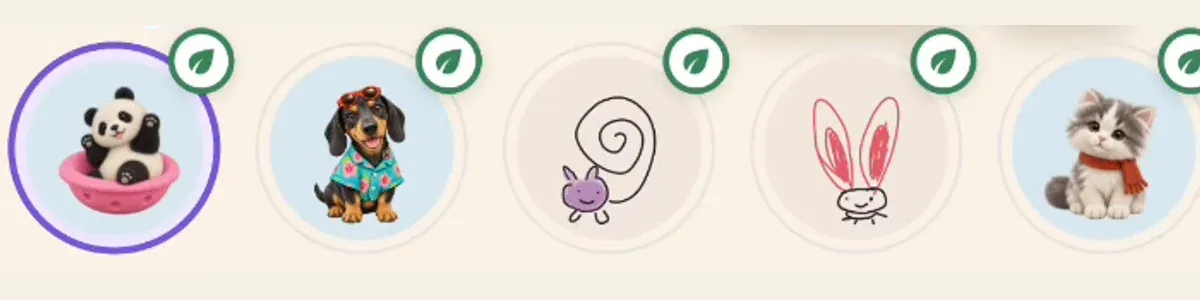
The purple outline identifies the selected companion in this recorded example. The portraits in your own collection will differ.
Swipe left or right along that row if the companion you want is not visible. An egg can belong to a new companion that has not hatched yet; it does not mean your older pet has been overwritten.
3. Tap a portrait and check the pet you are visiting
Tap the intended portrait. Let the name, room, and care view settle before doing anything else. Match the selected portrait to the character you meant to open.
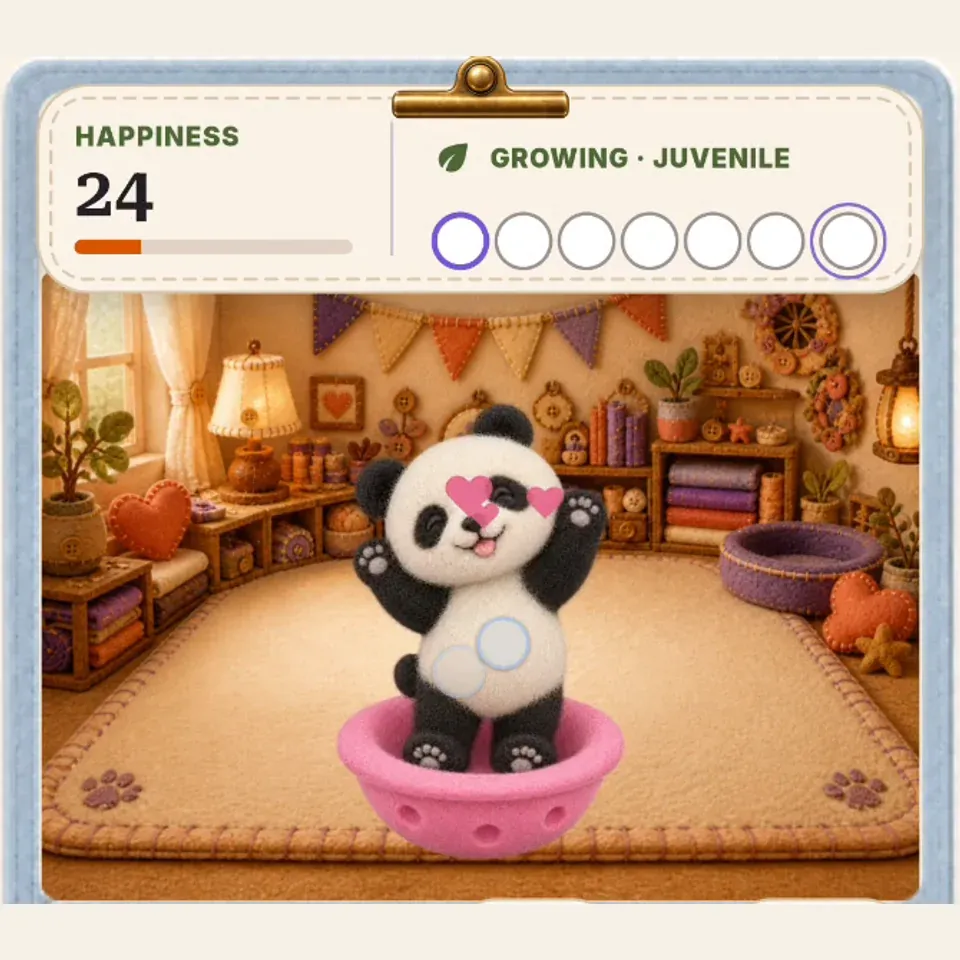
Check the active companion before caring for it. This screenshot continues the panda example shown in the portrait row above.
If you have several similar-looking companions, use the pencil icon beside the active name to give that pet a recognizable name, then save the change. Check the selected pet first so you do not edit the wrong profile.
Switching selects an existing companion. It does not submit a new AI generation, redraw the pet, or delete the one you were visiting before.
4. Care for the selected companion
Once the intended pet is in the room, use its available care actions. For a hatched personal companion, that can include feeding and touch interaction. An egg or a different companion type may show different actions, so follow the view in front of you.
The happiness and growth information belong to the companion you are visiting; do not assume one pet’s progress describes the whole collection. You can return to the portrait row whenever you want to visit another.
There is no need to create the same pet again just to see it. First look through the row and select the existing companion.
5. Check the pet on your phone screen separately
After choosing a companion in Paws, check the place where you want to see it:
- iPhone Home Screen widget: return to the Home Screen and check the displayed pet. If it still shows the older selection, follow the refresh checks in the iPhone widget guide. The Home Screen widget has its own setup; Show on screen is for the Lock Screen and Dynamic Island presentation.
- iPhone Lock Screen or Dynamic Island: select the intended companion in Paws and use Show on screen, then check the Lock Screen. The iPhone guide explains this display and what to check if it is missing.
- Android floating pet: select the intended hatched companion and check Show on screen, then go Home to see which pet appears. Use the Android floating-pet guide for setup or the missing floating-pet checklist if it does not appear.
An egg stays in Paws until it hatches. This guide explains how to visit several saved companions in turn; it does not describe displaying several floating pets at once.
If the companion you want is missing or will not open
Work through these checks before making another generation:
- Swipe through the full portrait row, including eggs.
- Check whether the latest creation has actually finished and whether there is a confirmation left to complete.
- Read any access message. A PRO official pet can require the relevant access before you can use it.
- If the view is still incomplete, reconnect, reopen Paws, and let it load. Do not delete companions or reinstall the app as a first attempt to refresh a list.
- If the problem remains, use PetPip support with what you expected, what appears instead, and a screenshot that avoids personal information.
Start with the portrait row, confirm the face in the room, and check its appearance on your phone screen if you use that feature. Your other saved companions remain in the row for your next visit.