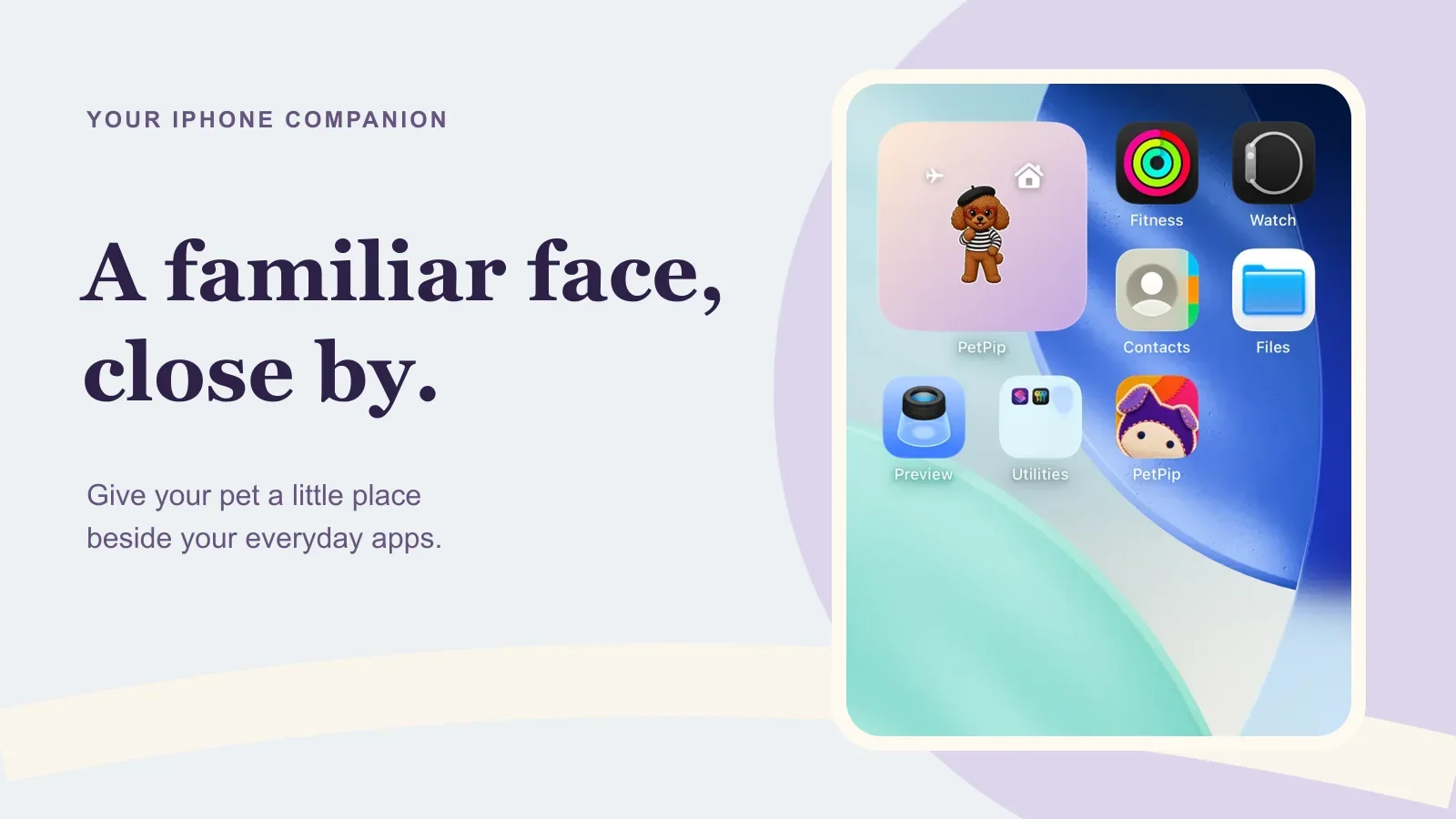
To put your PetPip companion beside your iPhone apps, open PetPip once and select your pet. Then touch and hold an empty area of the Home Screen, choose Edit → Add Widget, search for PetPip, choose a size, and tap Add Widget.
You can give the companion a regular spot beside your app icons, then choose whether you would also like to see it when you check the Lock Screen or look at Dynamic Island.
Screenshots show PetPip 1.1.4. Your iPhone’s menu labels may look slightly different.
Before you add the widget
Make sure that:
- PetPip is installed and has been opened at least once;
- you have selected, adopted, or created the companion you want to see;
- your iPhone is running a supported version of iOS;
- you have a little free space on the Home Screen.
1. Enter Home Screen edit mode
Go to the Home Screen page where you want the pet. Touch and hold an empty area until the app icons begin to move. Tap Edit in the upper-left corner, then choose Add Widget.
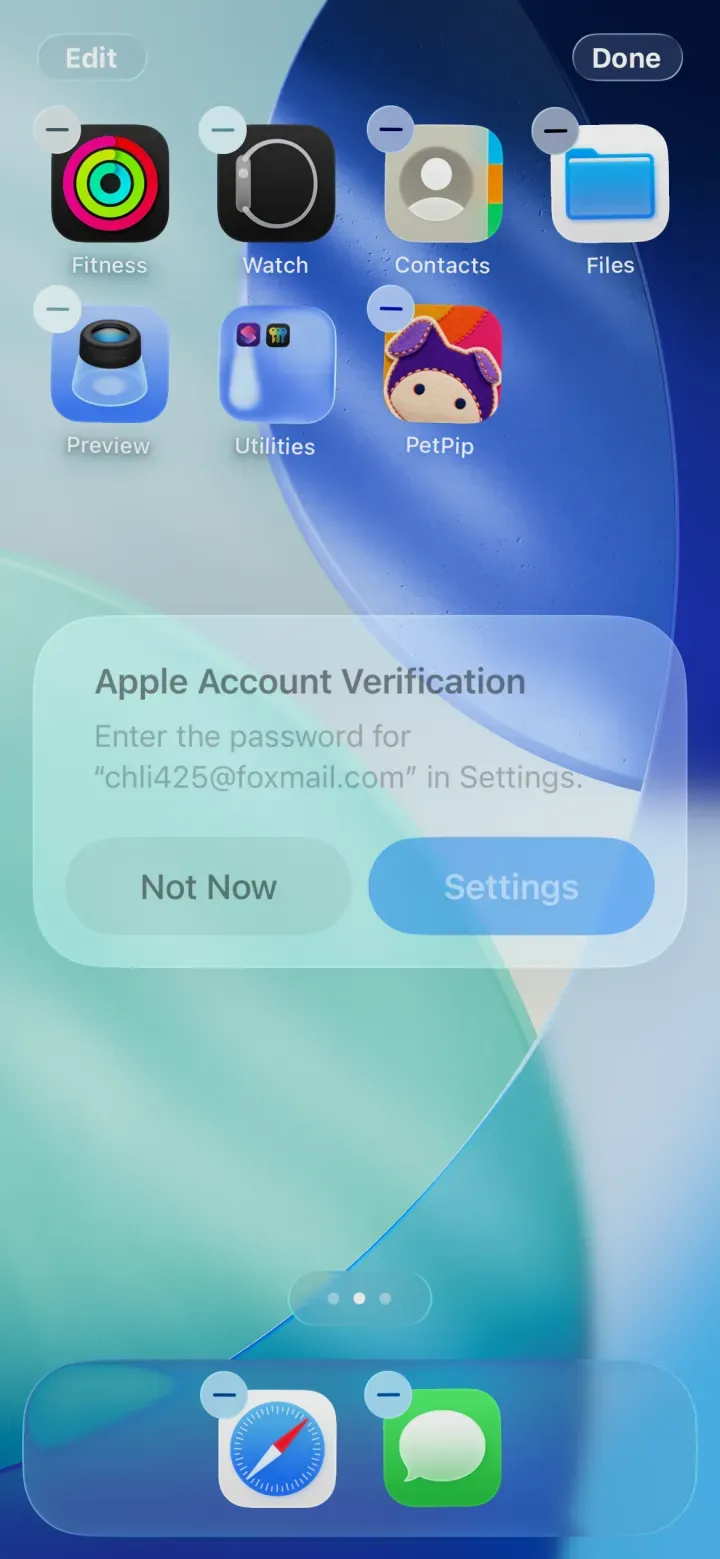
The exact appearance can vary by iOS version, but the goal is to open the system widget gallery.
2. Search for PetPip
Use the widget gallery search field and type PetPip. Tap the PetPip result.
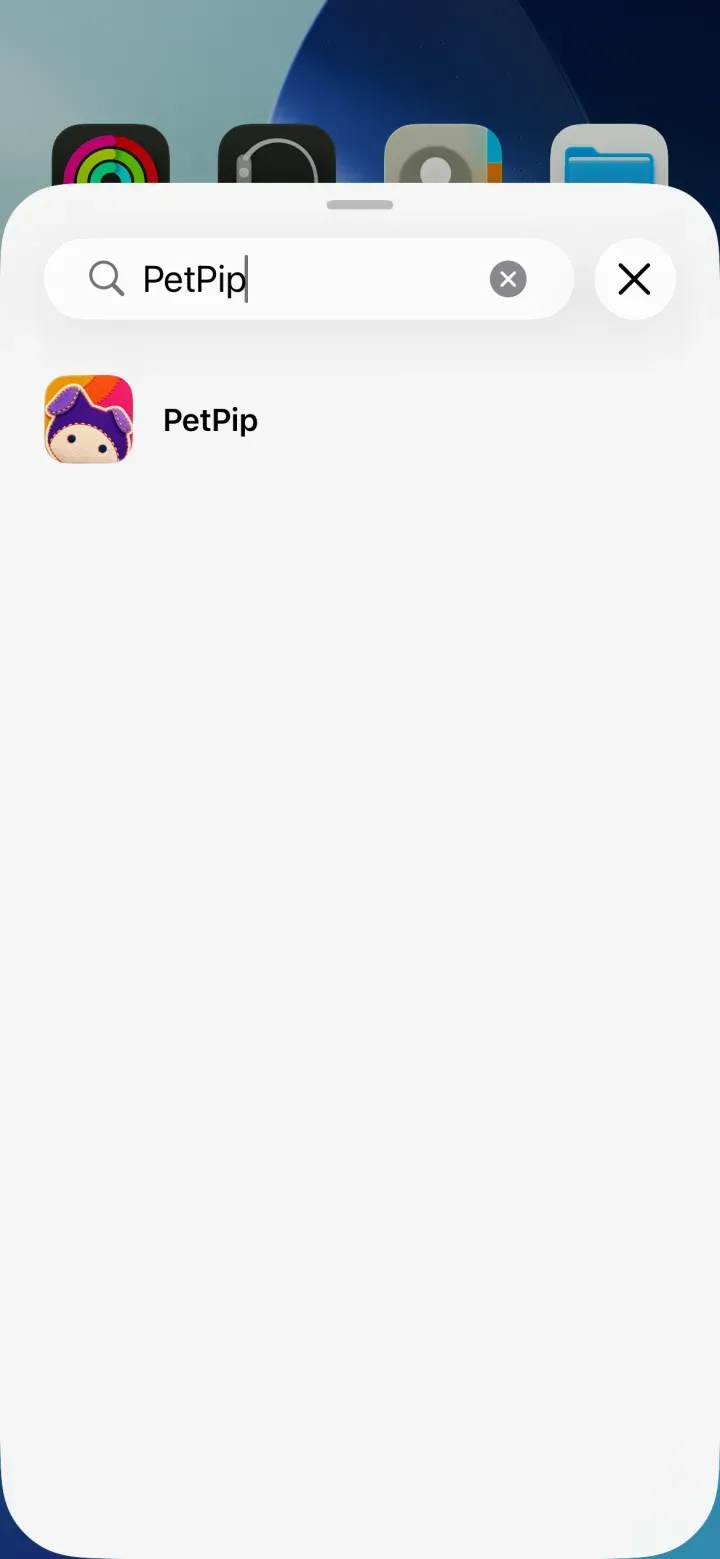
If PetPip does not appear, return to the app, open it once, and try the widget gallery again.
3. Choose a widget size
Swipe through the available PetPip widget styles and sizes. The preview shows how much Home Screen space the widget will use. When you find the one you want, tap Add Widget.
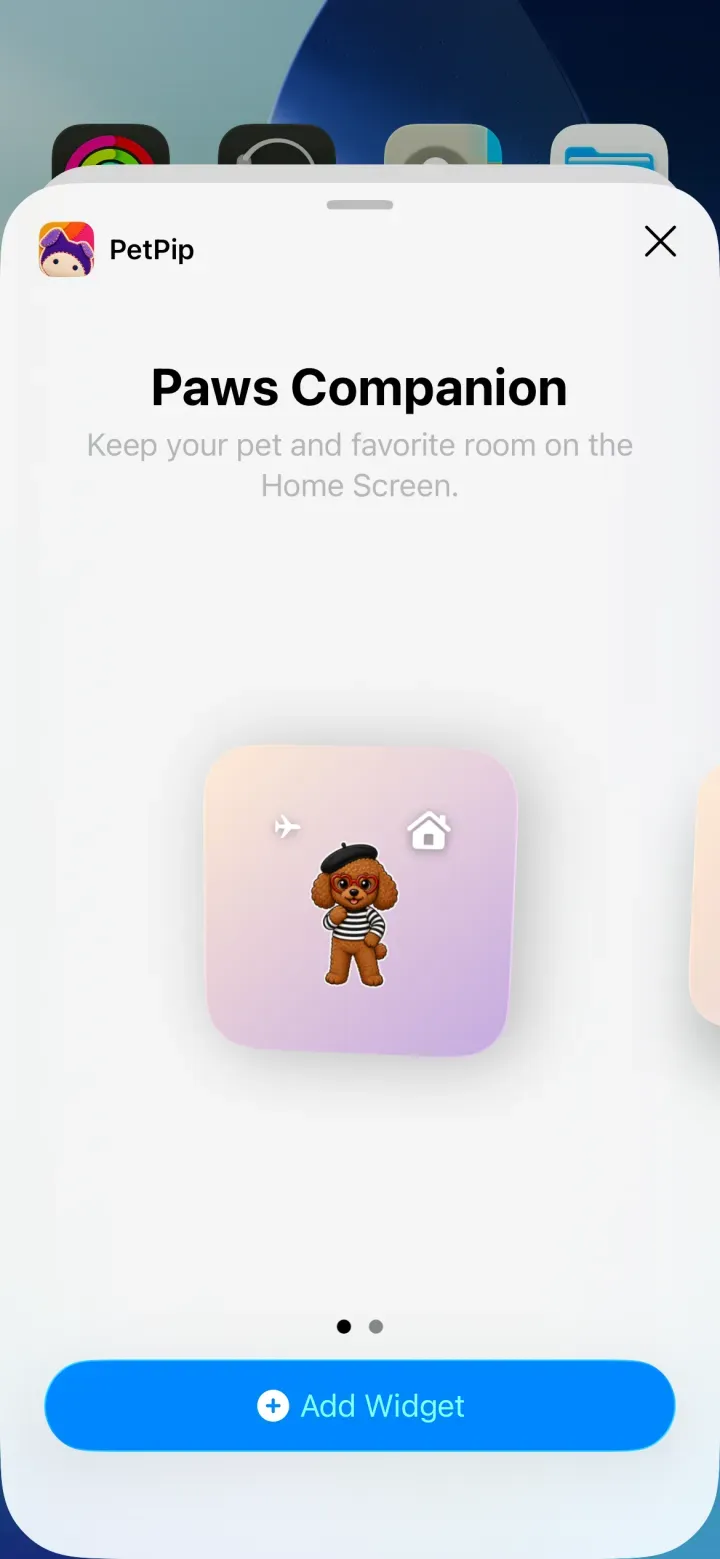
The small Paws Companion widget keeps the selected pet and room visible at a glance.
4. Position the widget and tap Done
Drag the widget to the part of the Home Screen where you want it. Tap Done to leave edit mode.
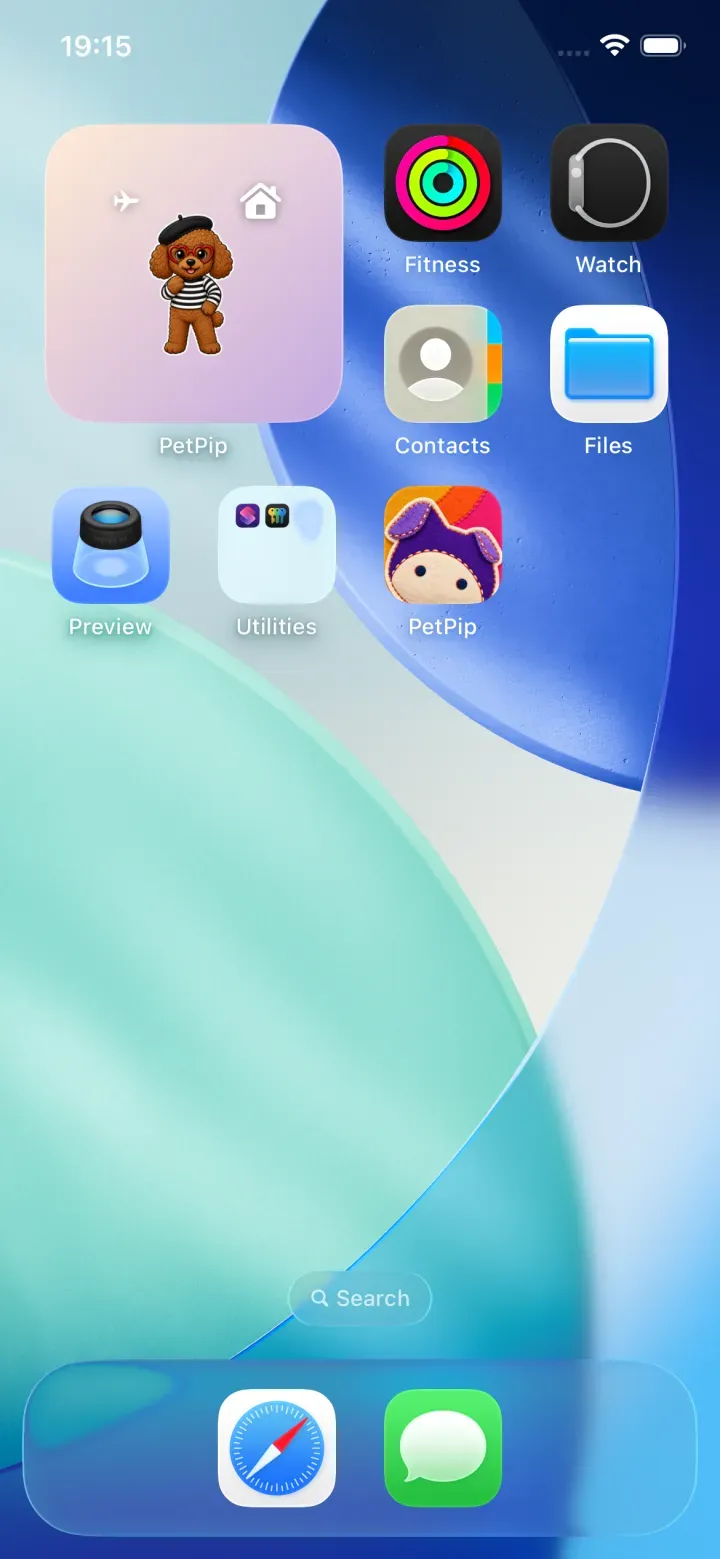
Your companion now has its own room beside your app icons. Tap the widget to return to PetPip.
What happens when you want to play with the pet?
Tap the widget to open PetPip and visit your companion in Paws. That is where you can feed it, interact through touch, and follow its growth. The widget itself is a view of your companion; it does not contain the feeding controls.
After a visit, return Home to see its little room beside your apps.
Apple maintains its own current instructions for adding and editing iPhone widgets. If your iPhone looks different from the screenshots above, follow Apple’s wording for your installed iOS version.
Where else can you see your pet on iPhone?
Choose the place where you would most enjoy seeing your companion:
| Place | What you will see |
|---|---|
| Home Screen widget | Your companion’s little room beside your app icons |
| Lock Screen Live Activity | A familiar face when you check your locked phone |
| Dynamic Island | A smaller glimpse at the top of an iPhone with Dynamic Island |
You can use the Home Screen widget and Show on screen together. The latter adds the Lock Screen appearance and, on iPhones with Dynamic Island, the smaller display at the top. Follow the steps below; you do not need to add another widget for it.
How to show your PetPip companion on the Lock Screen
- Open PetPip and go to Paws.
- Select the companion you want to keep visible.
- Turn on Show on screen.
- Leave PetPip and check the Lock Screen.
If your iPhone has Dynamic Island, look there too. An iPhone without Dynamic Island can still show the companion on its Lock Screen when supported.
If PetPip is missing from the widget gallery
Open PetPip, wait for the Create or Paws screen to finish loading, then return to the widget gallery. Confirm that you installed the current PetPip release available to you. If the gallery has not refreshed after an app update, restart the iPhone and look again.
If the widget shows an older companion
Select the intended companion again inside Paws, then return Home and check the widget. The display may not reflect a selection at the same instant you make it. If it still shows the older choice, remove the widget and add it again. Avoid clearing App data or reinstalling as a first step.
If the Lock Screen pet disappears
For a missing Lock Screen pet, return to Paws and switch Show on screen off and on again. Also check that Live Activities are allowed for PetPip in iOS settings. If the Lock Screen presentation works but Dynamic Island does not appear, confirm that the iPhone model supports Dynamic Island.
A useful setup choice
Give your pet a Home Screen room if you like having a familiar place to visit. Add Show on screen for a little company when you check the Lock Screen or look at Dynamic Island. You can enjoy both without choosing one forever.