
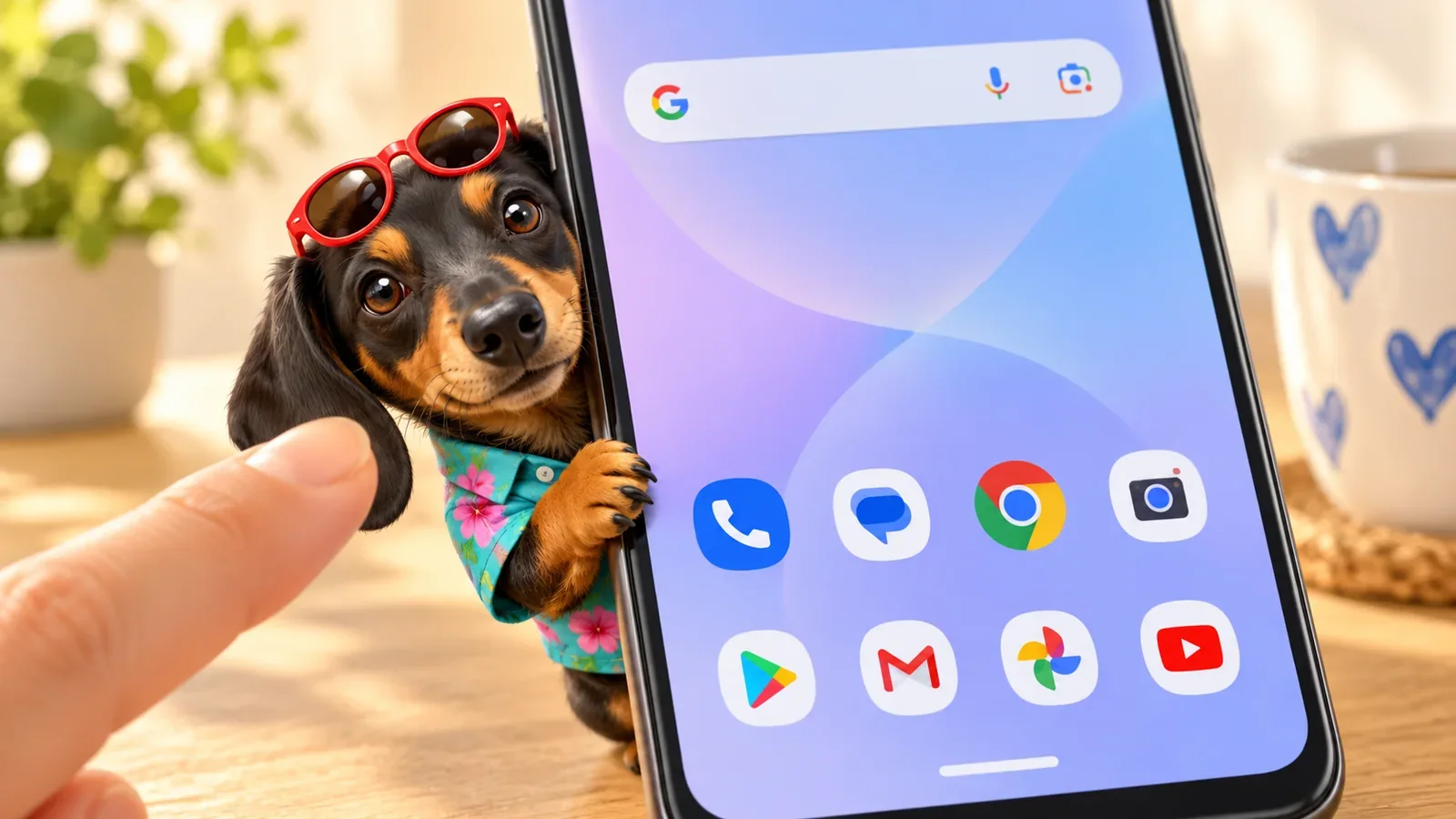
Can’t see your floating pet? Return to your Android Home Screen and look along both edges—it may be peeking from a small spot. If you still cannot find it, open Paws, select your companion, and check Show on screen.
A pet peeking at the edge, a permission that was never granted, and a display that stopped after working are different situations. The checks below help separate them without deleting your companion or starting over.
If you have not enabled a floating pet before, use the first-time Android setup guide instead. This page is for a display you expected to see but cannot find.
Start with what you can observe
| What you see | First useful check |
|---|---|
| A small part of the pet at an edge | It may be in its normal peeking state; try dragging it gently |
| The pet appears Home, but not over one particular screen | Try another app; some payment or security screens hide floating items |
| No pet, and Show on screen is off | Select your companion and enable the display again |
| The switch takes you to your phone’s settings | Let PetPip appear over other apps, then return to Paws |
| It worked, then vanished after you closed PetPip or restarted the phone | Reopen Paws and try Show on screen again |
1. Look at both edges of an ordinary screen
Your companion can settle by a side and peek from there. A small face at the edge may simply be the pet keeping out of your way, rather than a sign that something has gone wrong.
Return to the Home Screen and look along both sides. If you can see the pet, drag it gently away from the edge. Let go near a side to leave it there, or around the center to watch its little spacecraft journey. Double-tap when you want to go back to Paws.
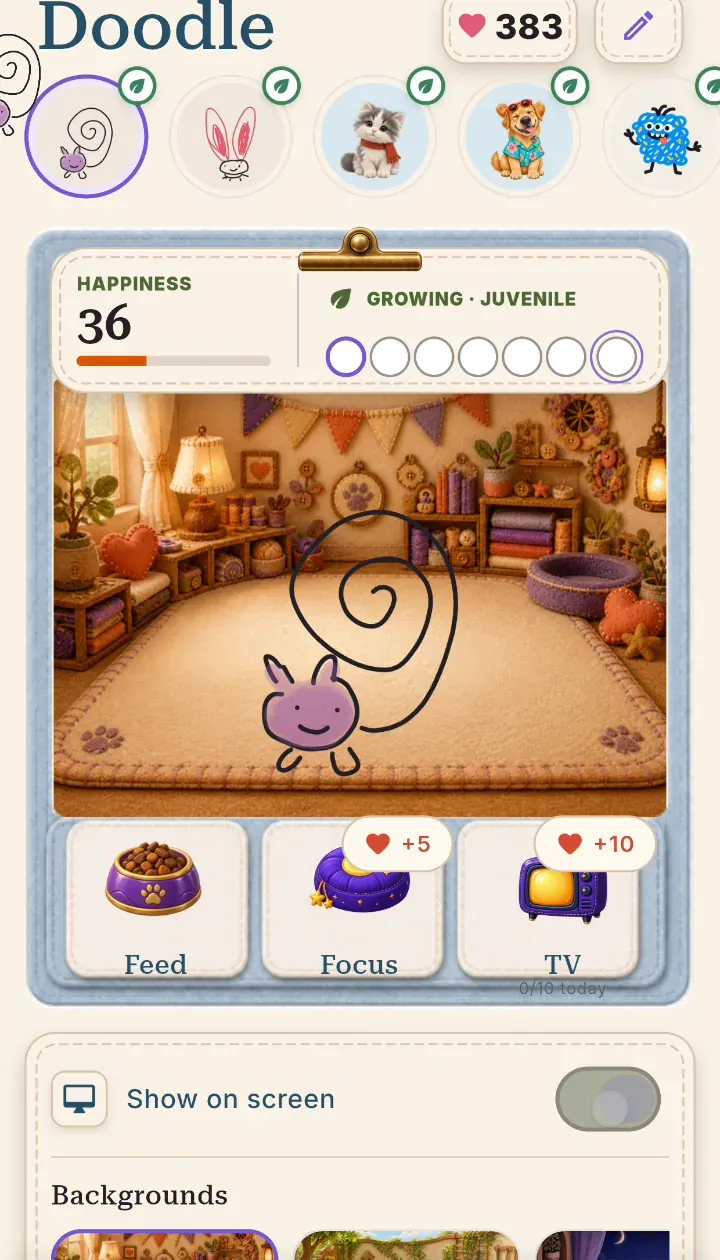
Use an ordinary Home or app screen for the first check. This approved demonstration shows the kind of floating appearance you are looking for, not a universal position or size.
Outside Paws, look for the little pet itself rather than its whole room.
2. Check the companion and the display switch
Open Paws. Confirm that the intended pet is selected and that its in-app view loads. Then find Show on screen below the main care area.
If the switch is off, enable it. If it is already on but the pet is absent on an ordinary screen, turn it off once, then on again. This is a reversible display check, not a reset of the companion. Note any message rather than repeatedly toggling without seeing what changed.
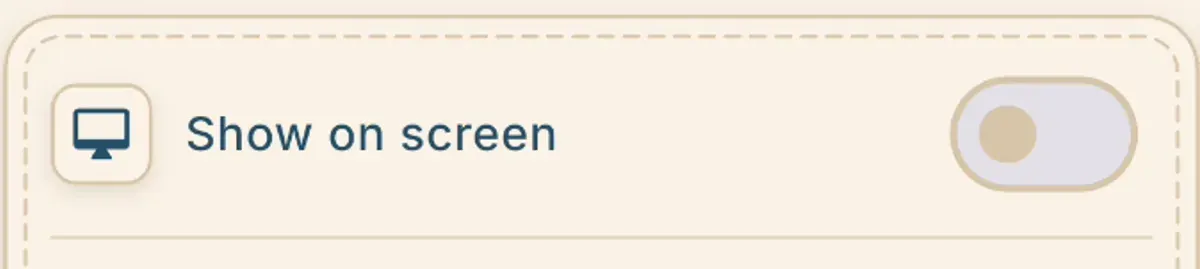
Check the in-app state before changing unrelated Android settings. This detail is from an existing product recording; surrounding UI may differ.
3. Let PetPip appear while you use other apps
In your phone’s Settings, search for Display over other apps, Appear on top, or the equivalent manufacturer label. Find PetPip and check whether it is allowed. If PetPip opens that permission page for you, return to the app afterward and recheck the switch.
Choose the option for appearing over other apps, not just notifications. Then return to Paws and try Show on screen again.
If your phone says this option is unavailable, note the message and your phone model for support. You do not need to install an extra utility or follow a desktop Shimeji tutorial to use PetPip.
4. Try Home and one other app
If the pet appears Home but not on a banking or security screen, leave that screen and look again. Some apps hide floating items while you do something sensitive; your companion may still be there when you return.
If it vanished after you stopped PetPip or restarted the phone, reopen Paws and try Show on screen again. If it keeps disappearing, record when it happens so support can help with your particular phone. Avoid changing a long list of battery settings at once—you will lose track of which change helped.
5. Keep evidence if it still fails
Send support a short description with:
- phone model, Android version, and PetPip version;
- whether the pet ever appeared, and what happened just before it stopped;
- the Show on screen and overlay-permission states;
- whether Home and other ordinary apps behave differently;
- the exact error text and, if useful, a screenshot with private information removed.
Do not send passwords, login codes, or account tokens. Avoid clearing storage or reinstalling before support can understand the problem; those actions may remove local information and still leave the original cause unresolved.
Once the pet is visible again, background and spacecraft customization explains how to change its room and ride without creating a replacement companion.