
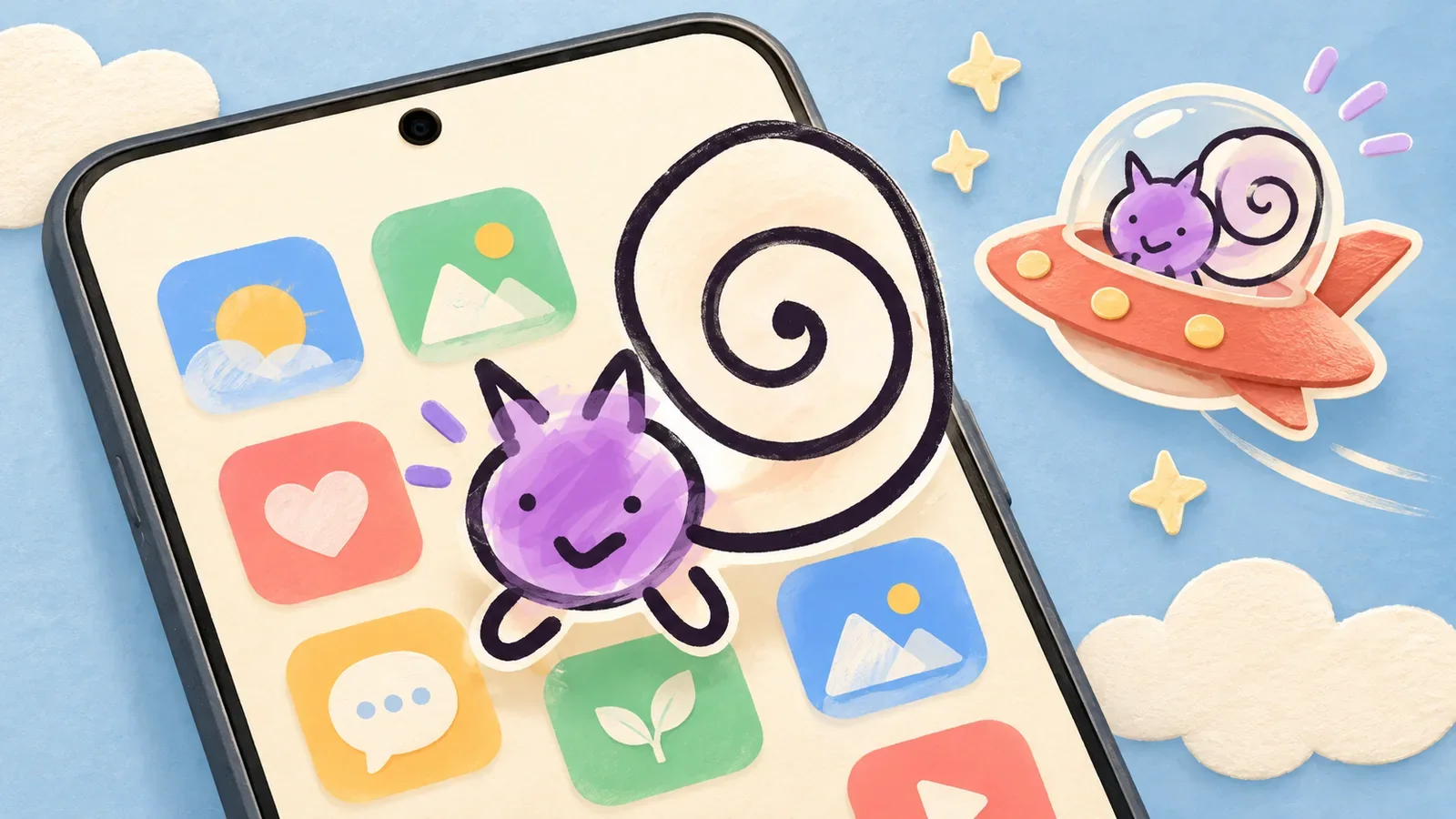
Your PetPip companion can join you while you use your Android phone, instead of waiting only inside the app. To try it, select the pet in Paws, turn on Show on screen, and follow the prompt on your phone.
The pet can move, tuck into the edge, and take a little spacecraft journey over the screen you are using. It can start from your own pet photo or a character you drew, so the tiny passenger can look familiar before its first ride.
Illustrated cover; the examples below show real PetPip recordings. Setup screens can differ between Android phones.
1. Choose the companion you want to keep nearby
Open Paws and select the pet you want to keep nearby. If this is your first companion, finish adding it and follow its hatching prompts. Then you can take the little character you have met out onto your phone screen.
For a personal starting point, follow the photo-to-pet guide or the drawing-to-pet guide. Those guides cover creation; you do not need to generate another pet just to enable the floating display.
2. Turn on Show on screen
In the selected companion’s Paws view, find Show on screen. You may need to scroll below the main care area. Enable the control.
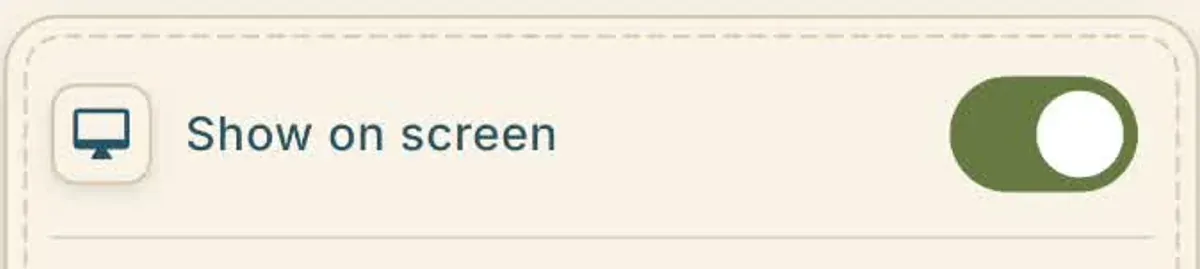
The in-app control starts the display flow. This detail comes from an existing PetPip recording; room artwork and surrounding controls can vary.
If Android opens a permission page, find PetPip and allow it to display over other apps. Manufacturers use different labels, including Display over other apps or Appear on top. Return to PetPip afterward and check the switch again.
This lets your pet stay visible when you leave PetPip. You can turn the floating display off again from Paws whenever you want a clear screen.
3. Leave the app and check the result
Go to your Home Screen or open an app you use every day. Look for your companion near the edges as well as the center—it may have found a little place to peek from.
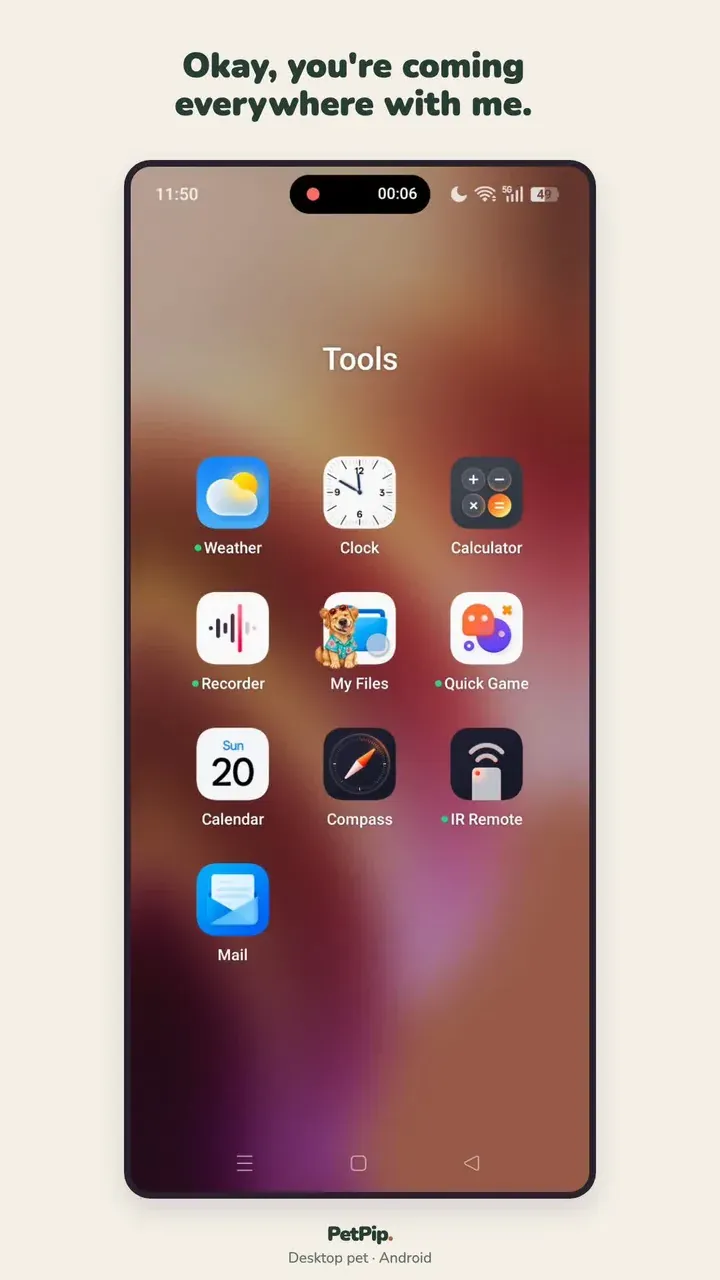
An Android example from a PetPip product recording: the companion joins the screen you are already using.
If you do not see it, try the Home Screen first. Some payment or security screens hide floating items, so your pet may reappear when you leave those screens.
4. Move the pet and try its rocket
Touch and drag the companion to move it. Where you release it changes what happens next:
| You want to… | Try this |
|---|---|
| Leave more room for what you are reading | Drag the pet toward a side and release; look for its face along that edge |
| See its spacecraft journey | Drag it away from the edge and release around the center to watch the ride |
| Feed or visit the companion | Double-tap the floating pet to return to Paws |
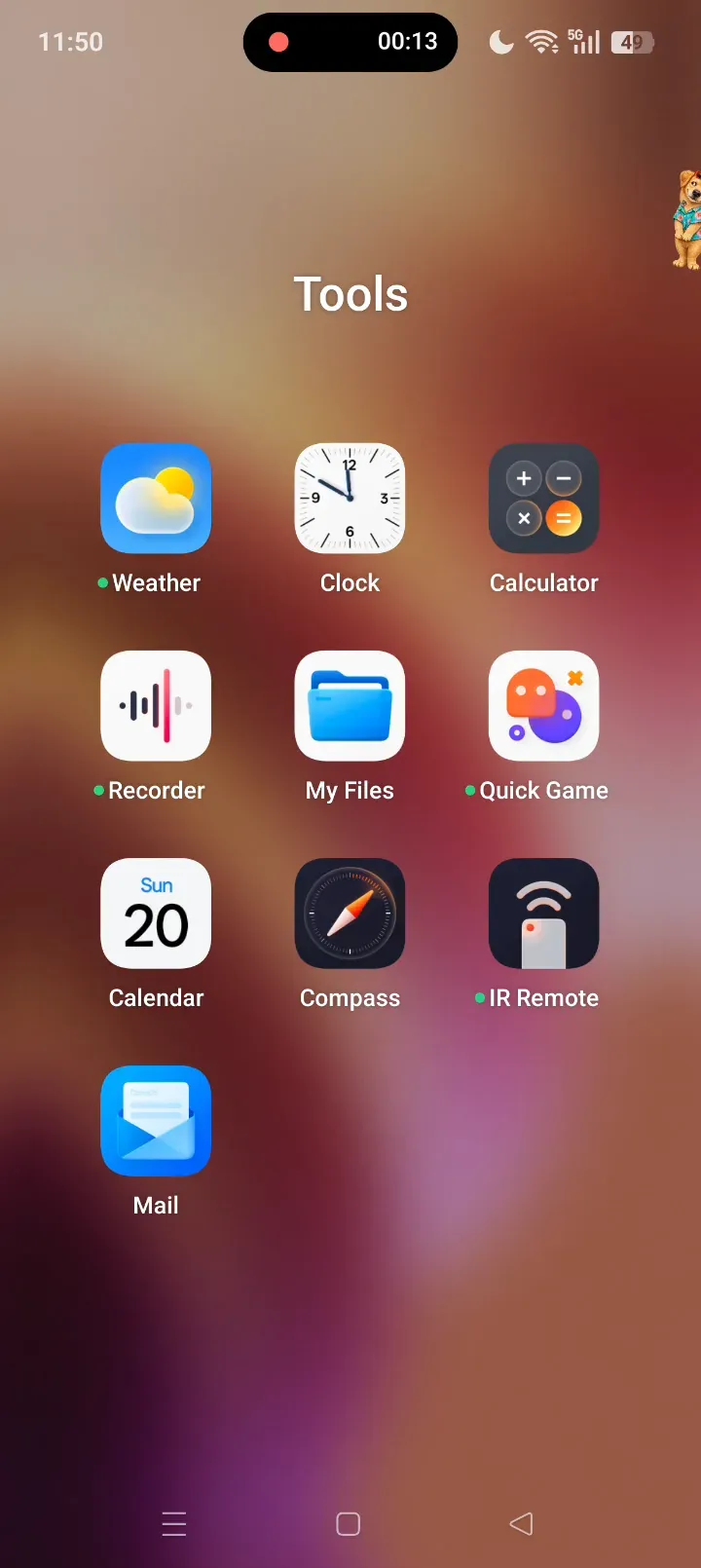
Look for the little face at the right edge. Moving the pet to a side leaves more room for what you are doing.
You can also choose the craft that carries it. See how backgrounds and spacecraft work for the difference between its in-app room and its Android screen appearance.
5. Turn the floating display off
Return to Paws and disable Show on screen. This stops the floating companion; it does not delete the pet or require you to create it again.
Turn the switch back on when you want your companion nearby again.
If the pet does not appear
Check that your chosen companion is selected and Show on screen is still on, then return to the Home Screen and look along both edges. If the phone asks whether PetPip can appear over other apps, complete that prompt before trying again.
The Android floating-pet troubleshooting guide separates those cases and explains what information to send with a support request. Avoid clearing app data or reinstalling as a first step.
The point of the floating display is simple: the companion you created can join the phone you already use. Its care and growth still live in Paws; its small appearances outside the app give you another way to keep it close.