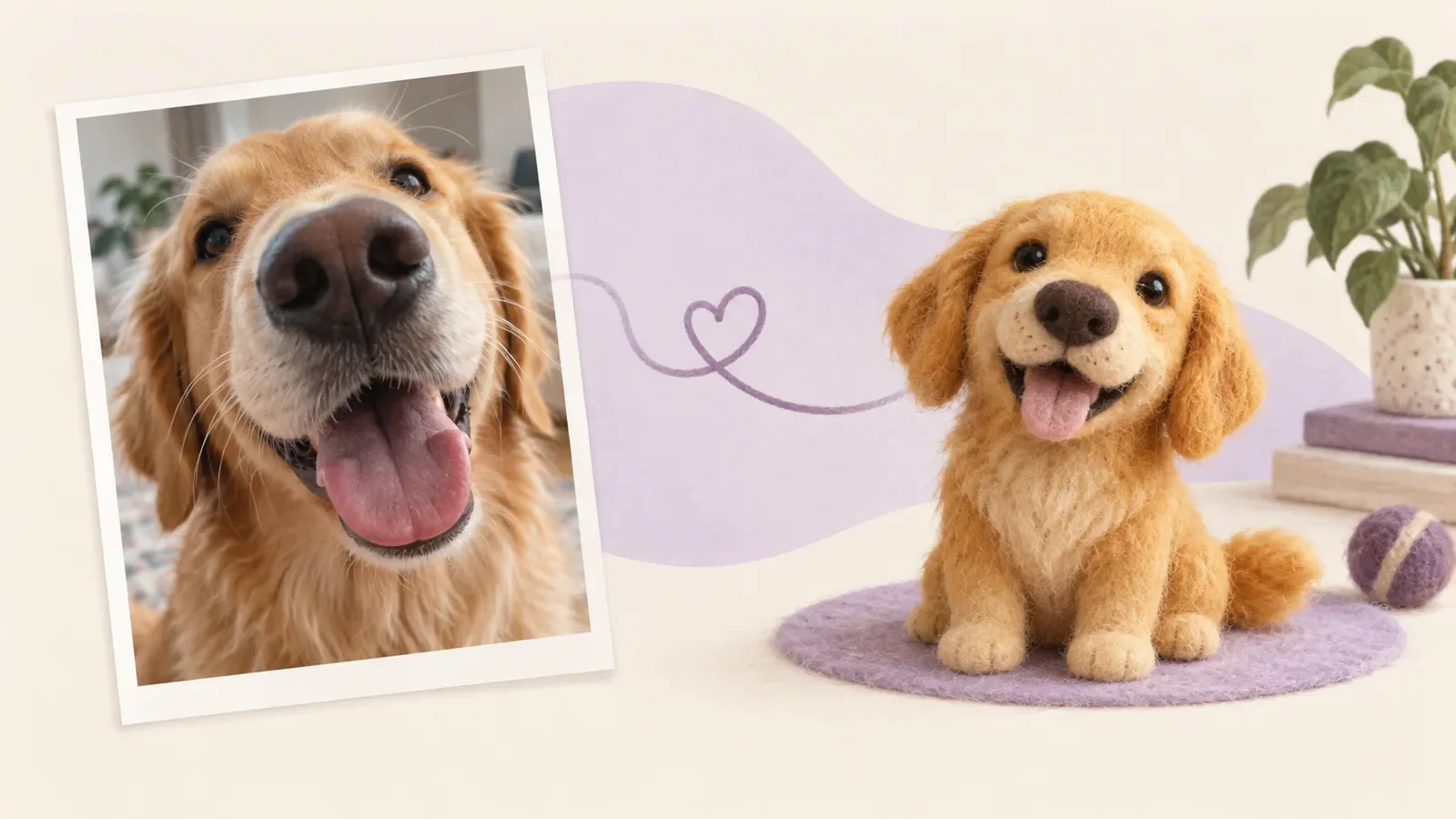
You probably already have a photo that can work. It does not need to be a formal portrait—the useful photo is the one where you can quickly recognize your pet’s face, colors, markings, or familiar expression.
PetPip lets you use that photo as the starting point for a screen pet you can hatch, care for, and revisit. This guide helps you choose the source image, create the pet, and decide whether the result still feels connected to the animal you know. AI results vary, so the goal is a recognizable interpretation rather than an exact copy.
1. Pick a photo with one clear subject
Start with an image where your pet is easy to identify at a glance. A useful source photo normally has:
- one obvious pet as the main subject;
- enough light to see the face, colors, and markings;
- the features you care about inside the frame;
- limited motion blur or strong filters;
- some separation between the pet and the background.
You do not need a studio portrait. A funny close-up, crooked sit, unusual ear position, or half-awake expression can carry more personality than a perfectly posed image. If that moment is what you want the companion to remember, make sure it is still readable at a small size.
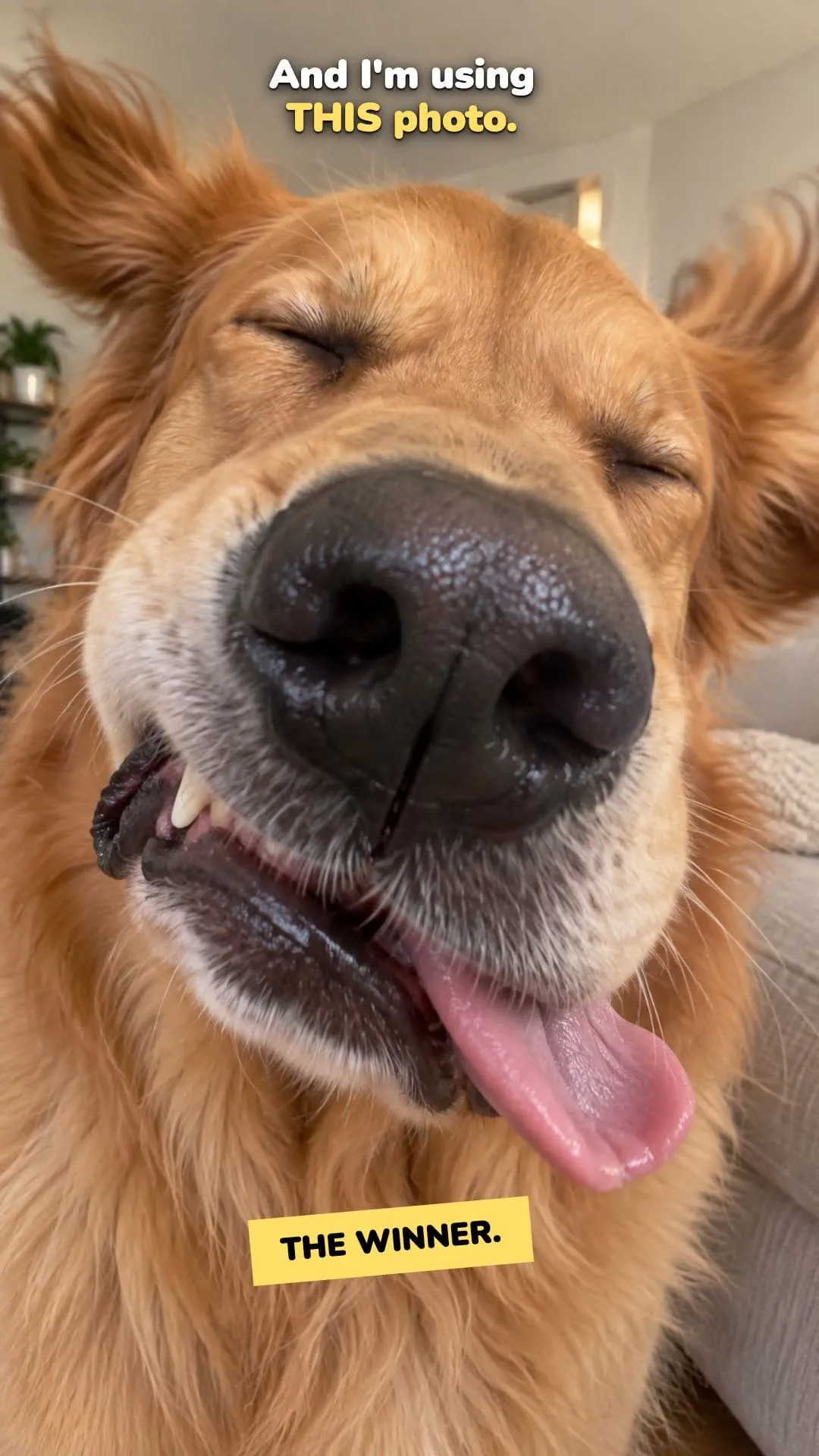
The approved PetPip video starts with a deliberately awkward close-up. The large nose is still clear enough to become the visual anchor.
2. Decide which details matter most
Before creating, name two or three details you would use to describe your pet to someone else. They might be a white stripe between the eyes, a large black nose, uneven ears, a curled tail, or a favorite collar.
This creates a practical review checklist. AI generation is interpretive: it can simplify markings, change proportions, or place more emphasis on one feature than another. A result can look polished and still feel wrong if it loses the detail that carries the pet’s identity.
3. Use the photo creation path in PetPip
Open PetPip, choose the photo-based creation path, and select the image you want to use. Pause on the preview long enough to make sure the right pet is visible and the feature you care about has not been cropped out. Then review the available interpretation choices before creating.
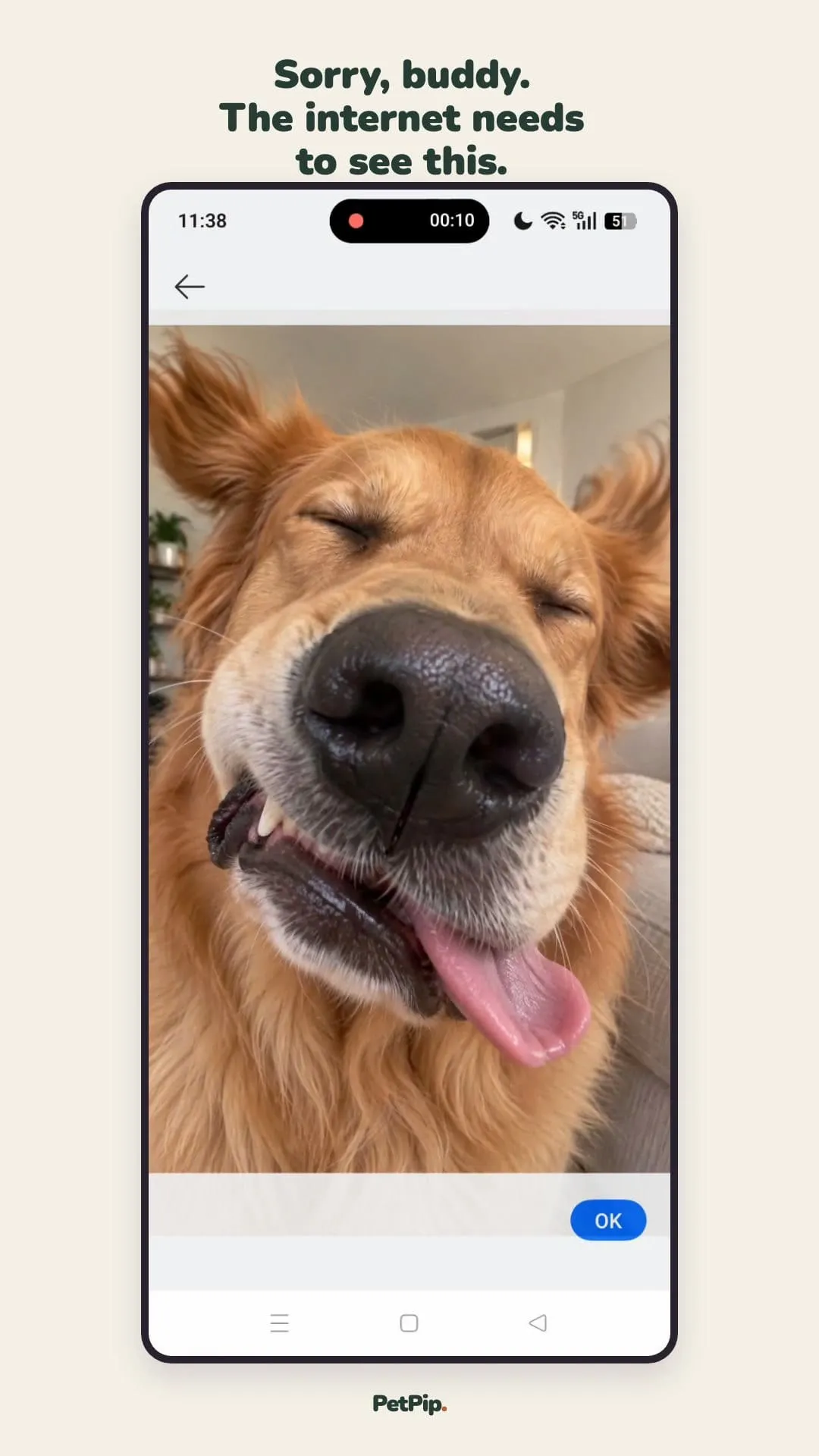
Choose the source deliberately rather than defaulting to the most polished photo in the camera roll.
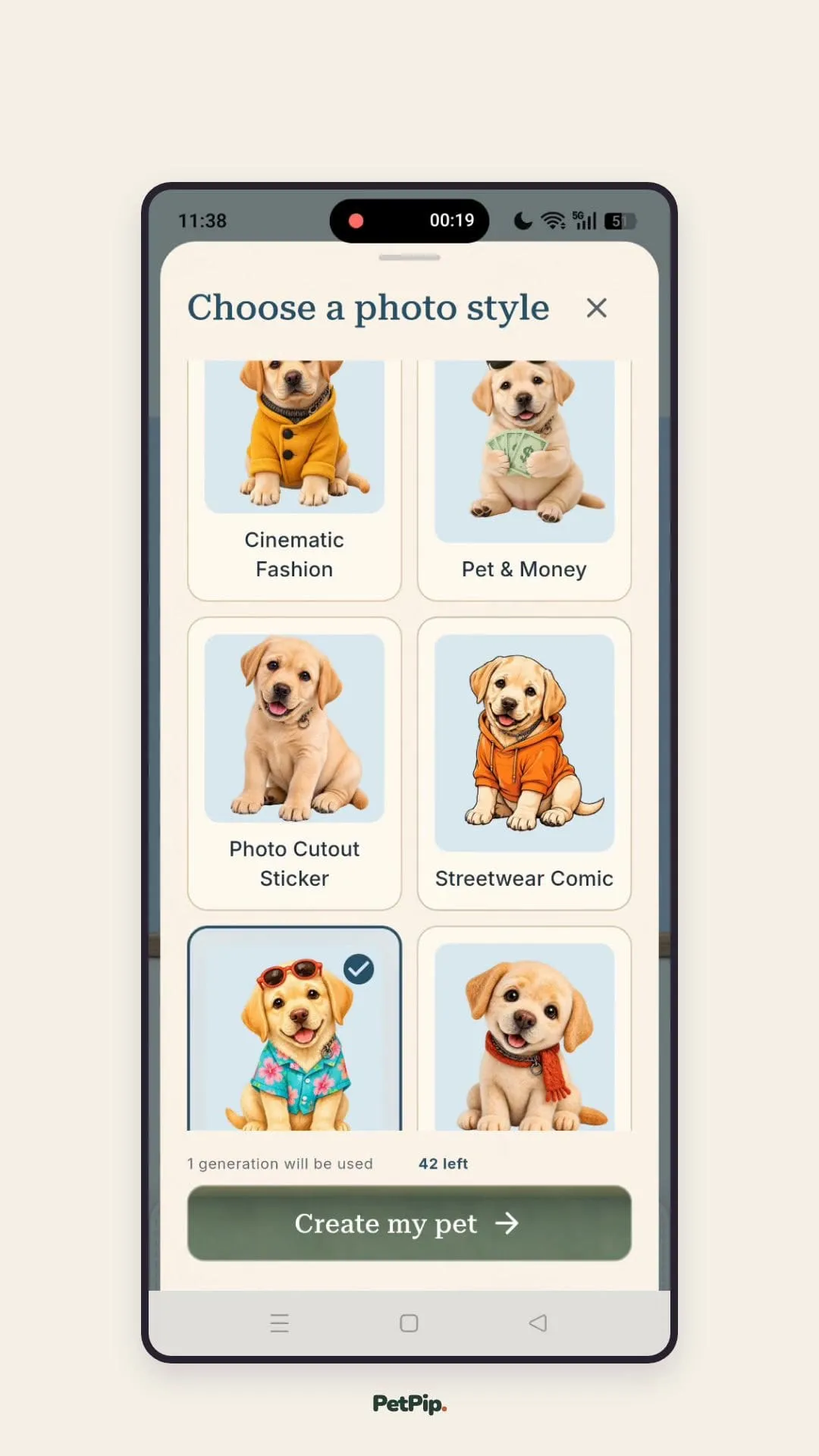
The creation flow includes an interpretation choice. Treat the preview as a direction, not a promise of an exact result.
AI pet creation requires an internet connection and available generation credits. Current allowances, optional PRO prices, renewal terms, and compatibility are shown in the app and its store listing. AI results vary, and no source image can guarantee an exact result.
4. Review the connection, not just the polish
When the result appears, compare it with the source photo before deciding whether it feels right:
- Can you still recognize the main colors and markings?
- Did at least one distinctive feature carry through?
- Is the character readable when it is small?
- Does it feel connected to the animal in the photo?
If the answer is no, inspect the source before trying again. A face that fills only a tiny part of the frame, a dark room, another animal beside the subject, or a heavy filter can make your intent harder to interpret.
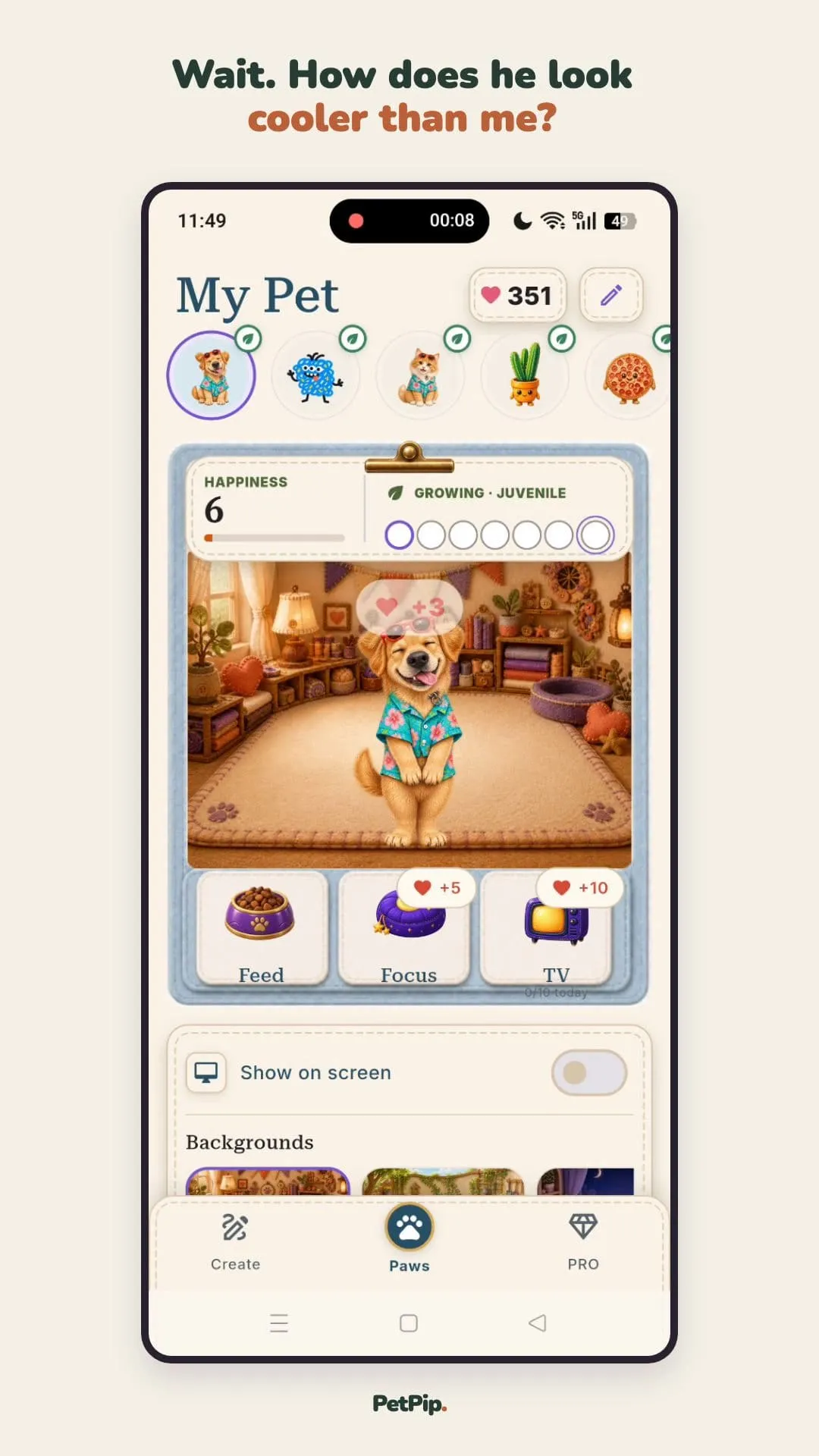
The final review is about continuity: the character is stylized, but the source photo’s warm color and prominent face still inform it.
5. Let the result become more than a portrait
If you only want a picture to save, an AI portrait tool may be enough. PetPip uses the image as the beginning of a continuing experience: the created pet can hatch, receive care, respond to touch, and grow over time.
On iPhone, you can give the companion a little room beside your apps and see it when you check the Lock Screen or Dynamic Island on a phone that has one.
On Android, it can join you as a floating pet while you use your phone, peek from an edge, and take a ride in a spacecraft you choose. The photo becomes a familiar face you can encounter during an ordinary day, not only a picture saved in an album.
A quick photo checklist
Before you create, check that:
- the pet is the clear subject;
- the important features are visible;
- the image is bright enough to read;
- the frame is not crowded;
- you know which details you most want to preserve.
The “best” source is often not the prettiest image. It is the one that makes the pet recognizable in a single glance.