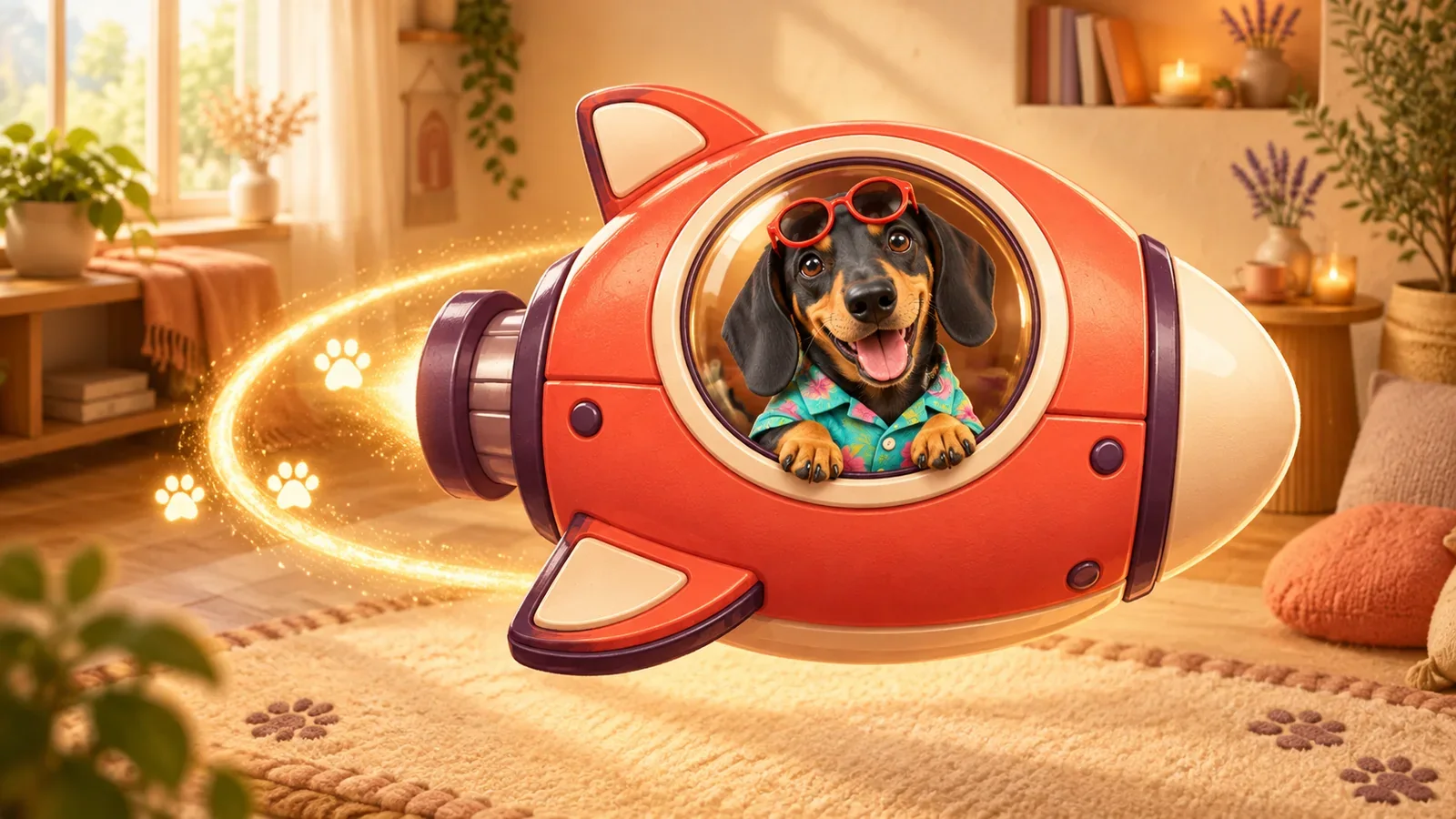
Give your companion a cozy place to come home to—and, on Android, a little spacecraft to travel in. Open Paws, select the pet, then use Backgrounds to choose its room and Spacecraft to choose its ride.
You keep the same companion while changing its surroundings. A serious-looking cat in a tiny rocket or a long-eared drawing in a cozy room can make the character feel more like your own.
Know which part you are changing
| Choose… | To give your pet… |
|---|---|
| Backgrounds | A room inside Paws, with colors and a setting that suit it |
| Spacecraft | A little ride for its journey on your Android screen |
The spacecraft journeys below are part of the Android floating-pet experience. If you use iPhone, you can enjoy your companion in its Home Screen room and during quick Lock Screen or Dynamic Island glances instead.
Once you have chosen a craft, you can try the ride yourself: drag the Android floating pet away from an edge and release it around the center. Step 4 shows what to look for.
1. Start with the right companion
Open Paws and select the pet you want to customize. If you have several companions, check its name and appearance before changing anything. If it is still an egg or waiting for its hatch reveal, complete the prompts needed to reach its companion view first.
Scroll below the main care area to the personalization section. Look for Backgrounds and Spacecraft rather than the Photo or Draw creation choices in the Create tab.
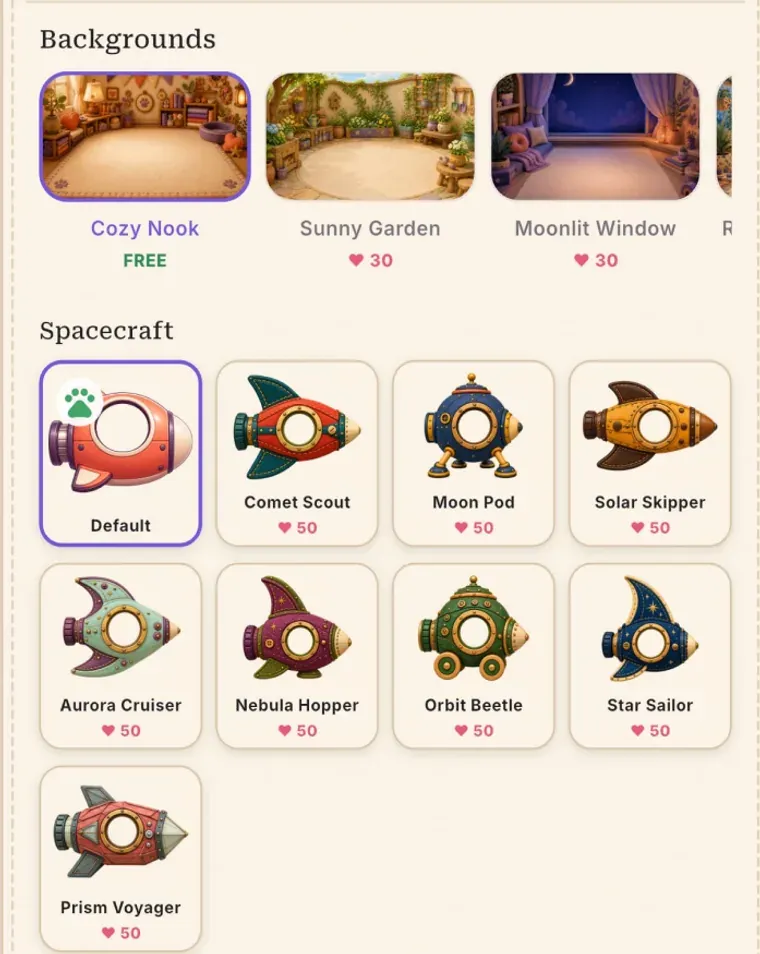
Background and spacecraft choices in PetPip store artwork. Check your app for available designs and unlock costs.
2. Choose a room that suits your pet
Under Backgrounds, browse the available scenes. Select a background you already own, then check the setting behind the companion. A quiet room, a garden, and a night scene can give the same pet very different moods without changing the source that made it personal.
Start with a background you already have. If another catches your eye, check its Hearts cost and any confirmation before unlocking it.
Choose a scene that lets your pet stand out. A simpler room can work especially well for a character with a detailed outfit or unusual silhouette.
3. Pick a spacecraft
Find Spacecraft and choose a craft you own. If another one needs unlocking, check its cost in the app before confirming; the screenshot may show different choices or prices.
Use Default whenever you want to return to the standard craft.
Try looking at the pet and craft together. An oversized tail or a very serious expression can make a tiny passenger especially funny.
4. See the ride on Android
Turn on Show on screen, follow any prompt on your phone, and go Home or open another app. For the full setup, use the Android floating-pet guide.
Try these two movements:
| Your action | What to look for |
|---|---|
| Move the pet away from an edge and release it around the center | The selected spacecraft joins its little journey |
| Move the pet back toward a side and release | An edge position where the companion can peek into the screen |
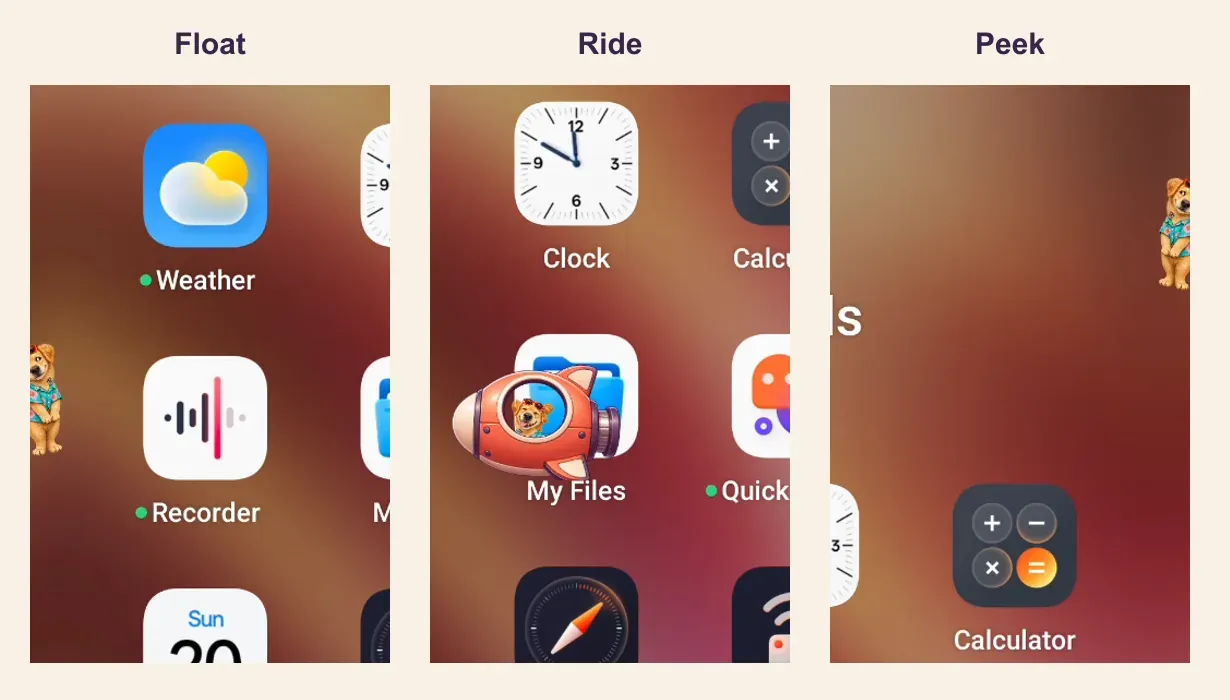
The same companion across an actual Android recording: floating presence, a spacecraft ride, and an edge appearance. The crops enlarge the recorded details; they do not show three pets at once.
Double-tap the floating pet to return to Paws. From there, you can feed it, change its room, or choose another owned craft and try the ride again.
Change it back or take a break
To change the room again, return to Backgrounds and select an available alternative. After unlocking a room or craft, check that it is selected before leaving the screen.
To stop the floating pet on Android, disable Show on screen. The companion remains in Paws. You can still visit it, feed it, and follow its growth; the care guide covers that ongoing routine.
A personal pet does not need a new identity every time you change its surroundings. Sometimes a familiar face, a room that feels right, and a tiny rocket are enough to make the phone feel a little more yours.