
You can love the idea of raising a virtual pet and still have a calendar that leaves very little room for one.
A player in the Tamagotchi community described exactly that tension: they loved their pet, but working during the day made it difficult to care for consistently. Sometimes they were too busy to interact at all. They asked other players how they made it work.
The replies described familiar routines: feeding and playing in the morning, using a sitter during work, and returning in the evening. They were finding room for something they enjoyed in the lives they already had. Read the community discussion.
If you recognize that feeling, you may want two things: a pet you enjoy looking after, and a way to enjoy its company between visits.
In PetPip, the companion can begin with your own pet photo or a character you draw. You can hatch and care for it in Paws, then give it a place beside your apps on iPhone or let it float on your Android screen. A glance can be part of the pleasure, even when you are not stopping to play.
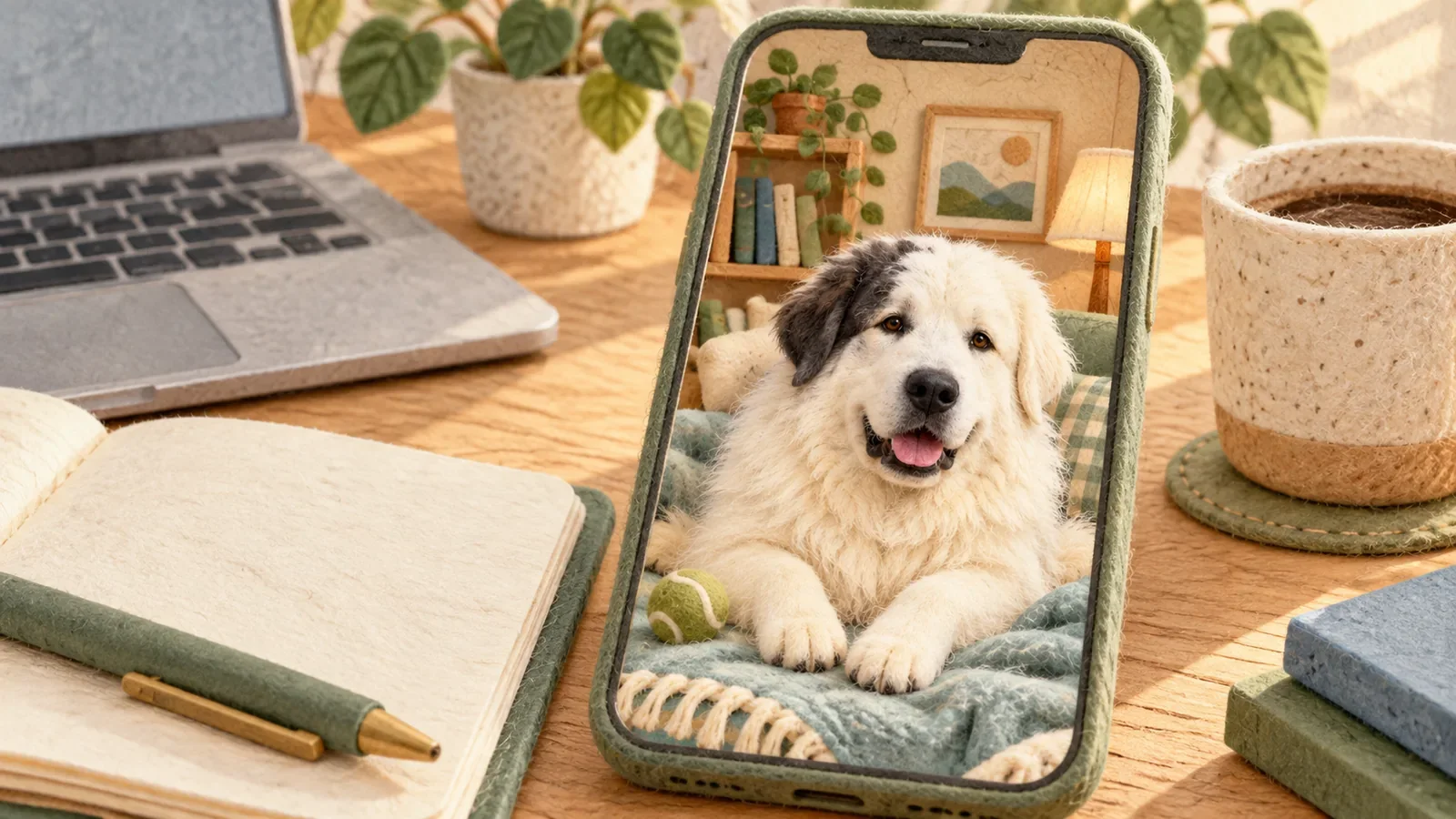
Illustrated cover; the example below pairs an internal creative image with a real PetPip recording.
Start with someone you already want to see
Think about the pet photo you keep showing people.
Perhaps your dog’s nose takes up nearly the entire picture. Perhaps your cat is asleep in a position that makes no anatomical sense. You remember what happened just before you took it, and the expression still makes you smile.
Using it to create a PetPip companion gives the little character a personal beginning. You bring a familiar detail into a new setting: the folded ear, the serious expression, the ridiculous silhouette.

The familiar face
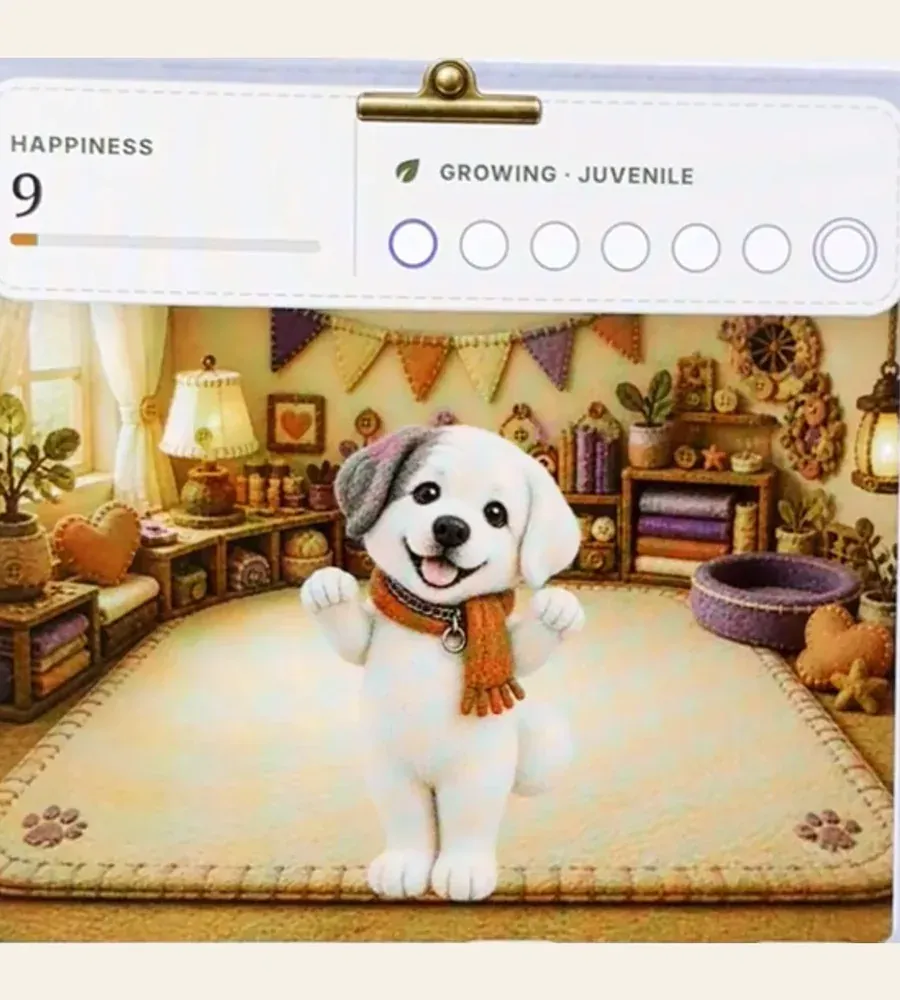
A little version to visit
The result is an AI interpretation, so markings and proportions may change. Keep the original photo, and look for the details that make the companion feel connected to it.
You can also begin with a drawing. An uneven rabbit, a round creature with tiny feet, or something you invented during a quiet moment can become a character you name and return to.
If you have a photo in mind, the photo-to-pet guide shows how to start.
Give your companion a place in your day
A small, familiar presence can be enjoyable even between longer visits.
On iPhone, a PetPip Home Screen widget gives your companion a little room beside your everyday apps. You might see it while checking the weather or looking for your music. Supported iPhones can also show the companion through a Lock Screen Live Activity or Dynamic Island.
On Android, the floating pet can appear while you use other apps. You can move it to a comfortable spot or leave it near an edge.
Try a place you already look at: the Home Screen page with your music app, or an Android screen edge where the pet will not cover what you are reading. Seeing your own dog’s face there can make an otherwise ordinary phone check a little more personal.
Make a short visit feel like play
When you have a little time, open Paws to feed your companion, interact through touch, and follow its growth.
You might visit after making a drink or when you sit down at home. The widget or floating pet makes the character easier to see; feeding and growth still happen through care in Paws. Start by exploring that routine, so you know what a visit involves.
On Android, there is a more playful encounter waiting outside the app, too. Drag your floating pet and release it around the center of the screen to trigger its spacecraft journey. Release it near a side when you would rather leave it by the edge.
Seeing a tiny version of your own dog take a spacecraft ride has a particular kind of humor. You know the real dog—the one who hesitates at a puddle—and here is this little version setting off in a rocket.
The Android floating-pet guide shows the movements and how to return to Paws. For the everyday care actions, see how to hatch, care for, and grow your companion.
Keep control of when it appears
Some moments suit a little company. Others call for a clear screen.
On Android, turning Show on screen off stops the floating display while keeping the companion in Paws. You can bring it back when you want it nearby again.
On iPhone, you can give the widget a place on a Home Screen page you visit often, or move it to a quieter page if that suits you better.
These controls change where you see the pet; they do not pause its care or growth. Bring it onto your screen when you enjoy the company, and keep visits inside Paws when you prefer a clearer view.
Begin with one familiar face
For your first companion, choose one photo with a story behind it—or draw a character you would enjoy meeting again.
Create it in PetPip, give it a name, and choose its room. Then try one way of keeping it close: a Home Screen widget on iPhone or a floating companion on Android.
Personal AI creation requires an internet connection and available generation credits. Review the allowance and creation choices in the app before submitting.
For a first try, place the companion where you will see it during your next ordinary phone check. Then visit Paws when you have time to say hello. The familiar face and the little interaction are both part of what you are trying.
The opening account comes from the linked community discussion, not a PetPip customer submission.