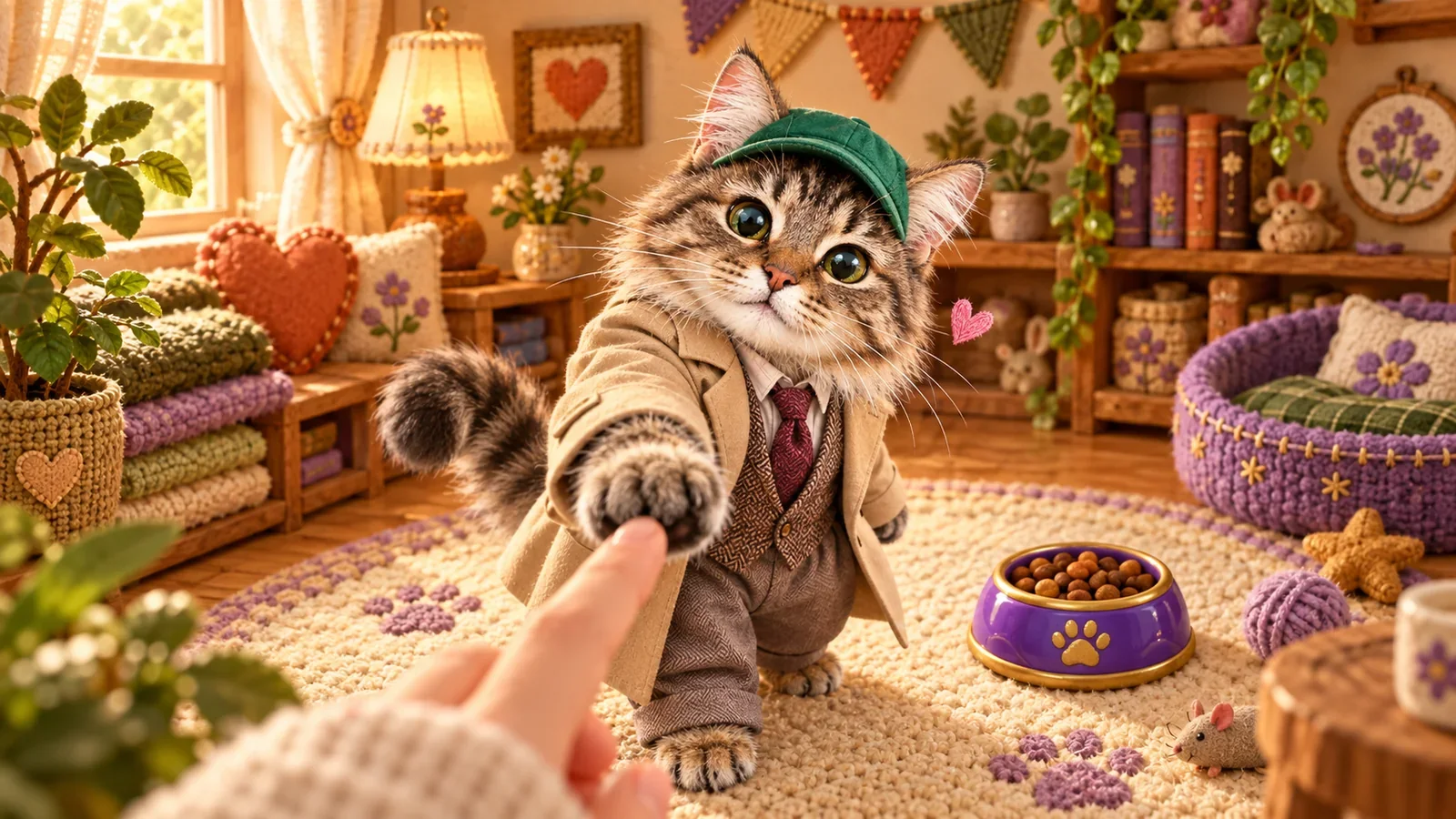
Your PetPip companion begins in one of three ways: claim a free random first companion, choose an available official pet, or create a personal pet from a photo or drawing. After you adopt or name it, the ongoing experience lives in Paws, where you can feed the pet, interact through touch, spend focus time together, follow its happiness, and watch its growth progress.
Start with a companion you are curious about. You can learn the care routine a little at a time.
Start with a random egg, an official pet, or your own idea
If you do not have a companion yet, open Paws. PetPip may offer a free random pet egg as your first companion.
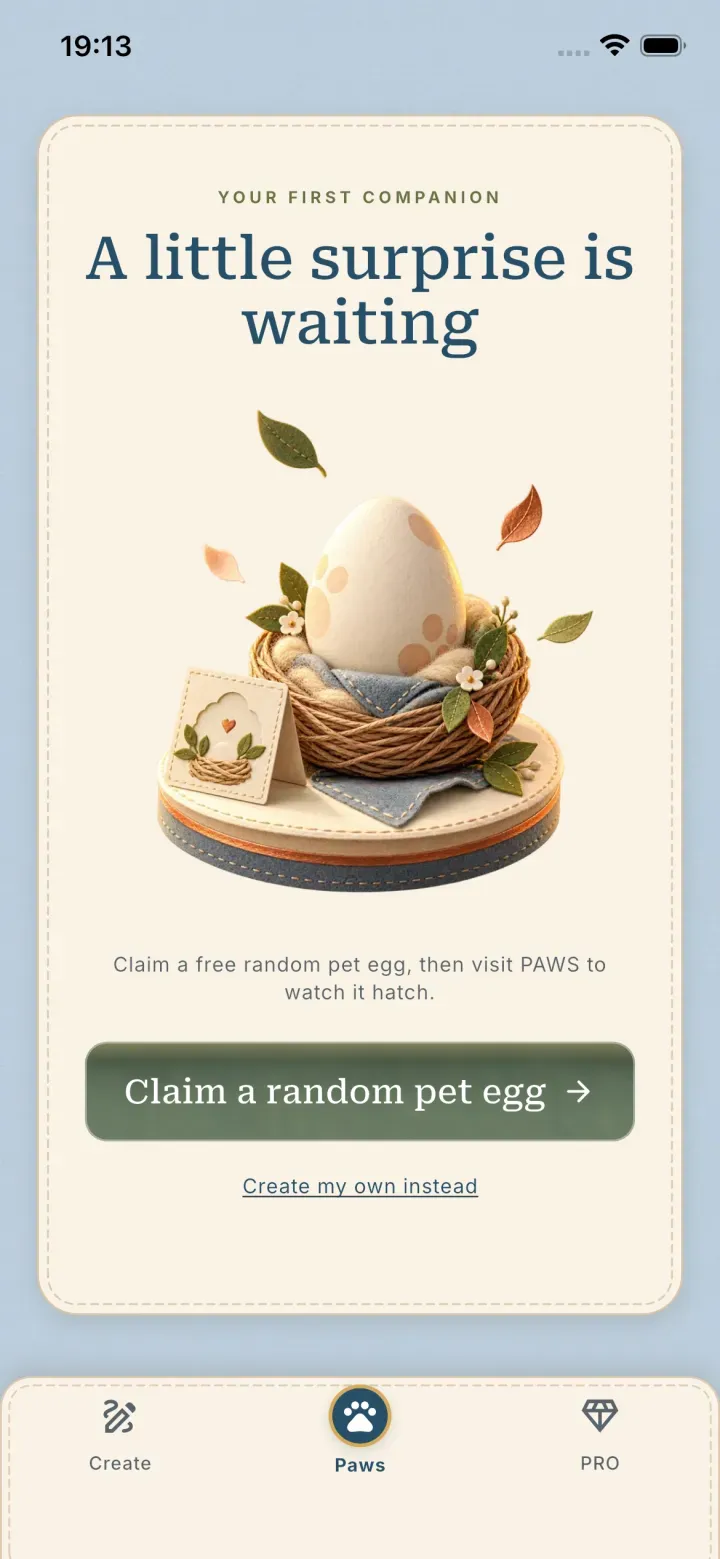
The first-companion screen gives you a quick path into the care experience without uploading a photo.
Tap Claim a random pet egg and wait for PetPip to reveal the companion. You can then adopt it and continue into Paws.
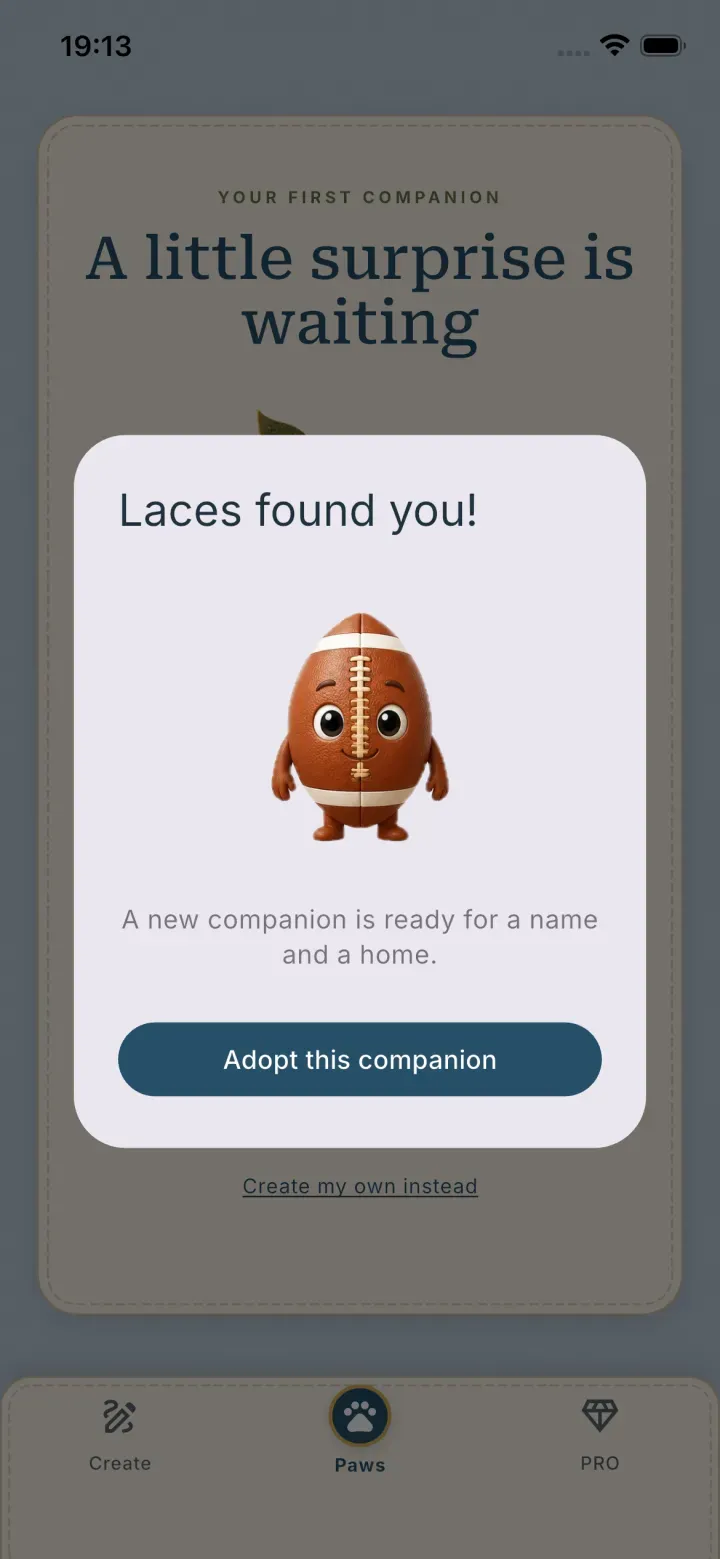
The exact companion is random. The reveal and adoption flow may change as PetPip evolves.
If you would rather choose the starting point yourself, open Create:
- Photo begins with an image you select;
- Draw begins with your own marks on the PetPip canvas;
- Discover contains available official companions, including free and PRO choices.
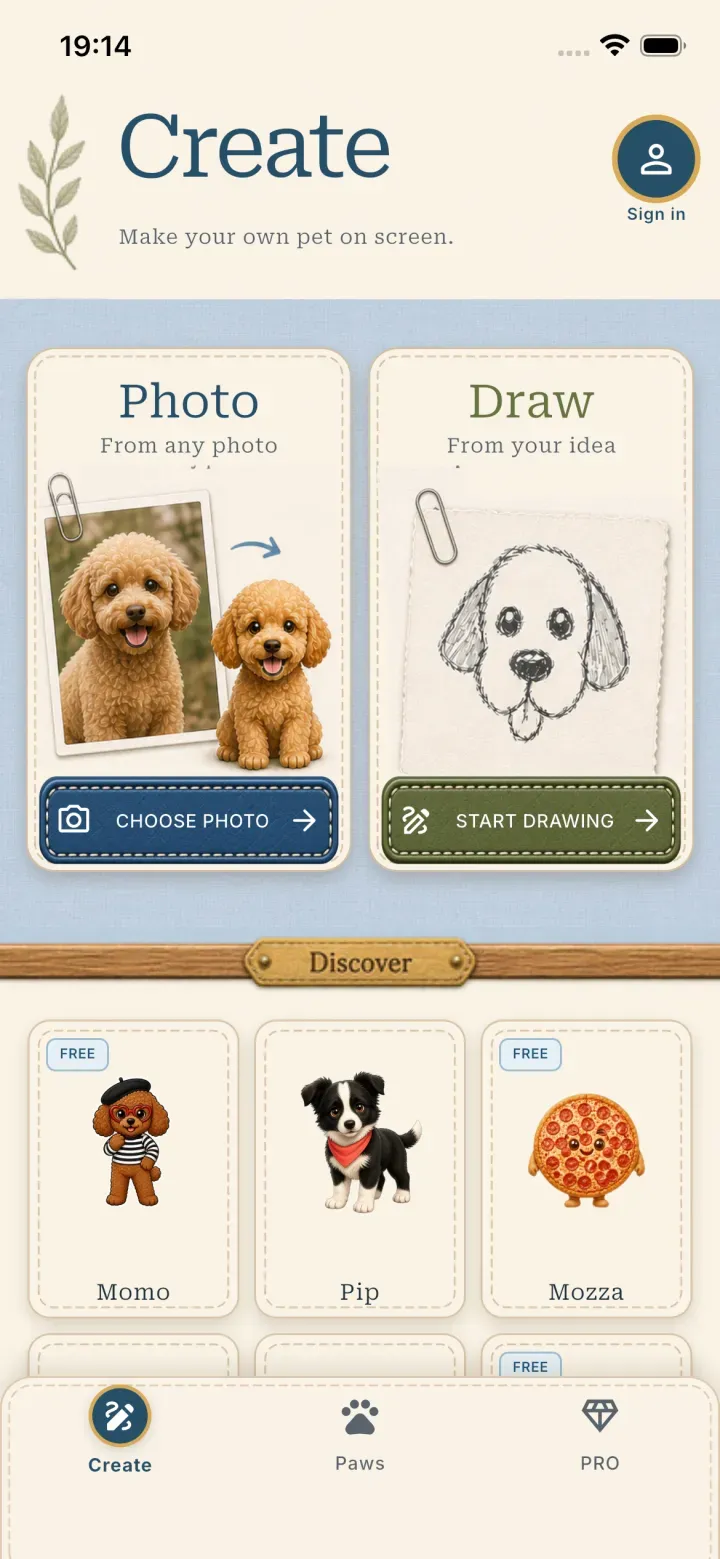
A personal AI creation and an official ready-made pet enter the same broader companion experience, but their creation requirements are different.
AI creation requires an internet connection and available generation credits. Review your allowance and any optional PRO terms in the app. Results can vary, so keep the original photo or drawing rather than treating a generated pet as an exact archival copy.
Learn the Paws screen
Once a companion is active, the Paws screen brings its main signals and actions together.
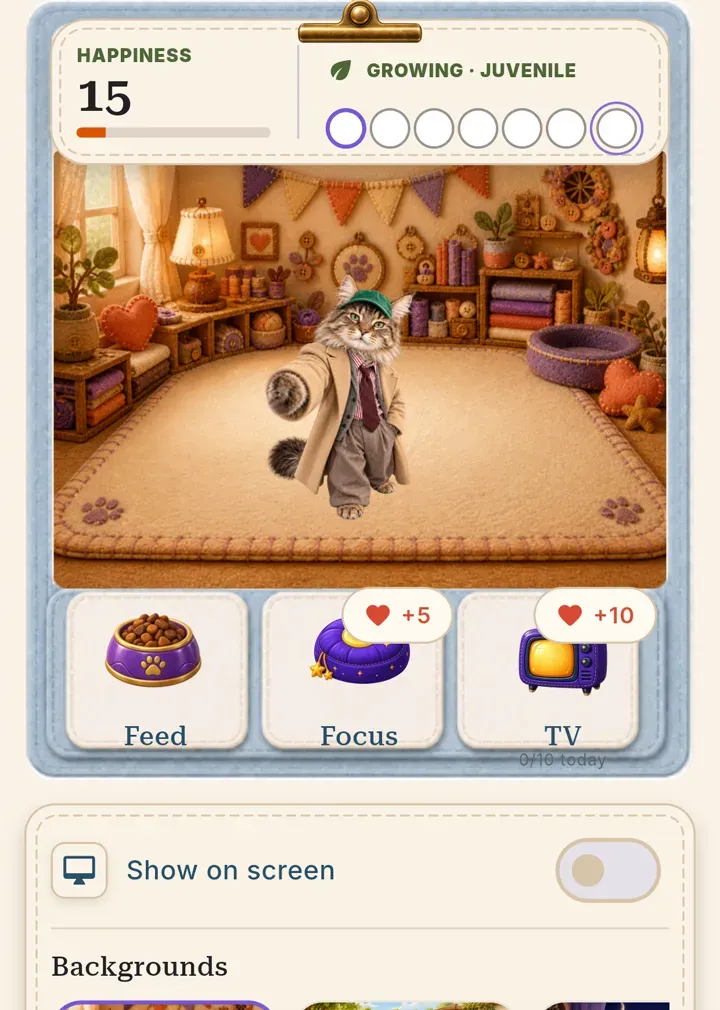
Your companion’s room brings feeding, focus time, and growth into one place.
The main areas are:
- Happiness: a simple signal that changes as you spend time with the companion;
- Growth: the current life stage and its visible progress markers;
- Room: the active pet, background, and the area where touch interactions happen;
- Feed: a direct care action;
- Focus: time set aside with the companion while you concentrate;
- Show on screen: lets your pet keep you company beyond Paws;
- Backgrounds and spacecraft: visual choices for the pet’s world when available.
Feed your companion
Tap Feed when you want to perform a basic care action. Watch the happiness area and the pet’s response rather than trying to tap continuously.
Think of feeding as a small check-in rather than a race to fill every number. Notice your companion’s response, then come back when you want to spend another moment together.
Interact through touch
Tap or touch the companion in its room to see how it responds. Touch gives you a lightweight way to check in without opening a separate activity or minigame.
Give the room a moment to load, then touch the pet itself and watch its response.
Use Focus as shared quiet time
The Focus action connects the companion to a calmer routine. Use it when you want the pet present while you work, read, or study.
It gives the two of you a quieter way to spend time together: a companion nearby while you get on with your own activity.
How growth works
The growth panel shows the current stage and visible progress markers. Feeding, touch, focus time, and regular returns are the parts of the care loop you can control. Growth itself is meant to unfold over time.
Look at the growth panel to see where your companion is now and what comes next, rather than trying to finish every stage in one sitting.
This also means there is no need to rush. A virtual pet can be a small routine rather than another demanding streak.
Put the companion on your iPhone screen
Turn on Show on screen in Paws to see the companion when you check your Lock Screen, and in Dynamic Island on iPhones that have one. If you would like its room beside your everyday apps too, add a Home Screen widget separately.
For the full distinction and setup steps, see How to Add a Pet Widget to Your iPhone.
On Android, Show on screen lets the pet join you while you use other apps. Move it to a comfortable spot and enjoy its little spacecraft journeys. Backgrounds and Spacecraft let you choose a room and ride that feel right for this particular companion.
If your companion does not appear or update
Try the following:
- Confirm that the device is connected when PetPip needs an online service.
- Return to Paws and select the intended companion.
- Let the room and status panel finish loading before interacting.
- Close and reopen PetPip if the view remains incomplete.
- For a missing Live Activity, switch Show on screen off and on again and check the app’s Live Activity permission in iOS.
If your pet is still being created, wait for that request to finish before starting another one.
A simple care rhythm
You do not need to optimize every number. A practical routine is enough:
- Open Paws and notice the current happiness and growth state.
- Feed or touch the companion when you want a short interaction.
- Use Focus when the companion can share a longer quiet session.
- Return later and observe what has changed.
The point of the loop is not perfect maintenance. It is giving a companion—whether it began as a photo, a drawing, or an official pet—a small continuing place in your day.