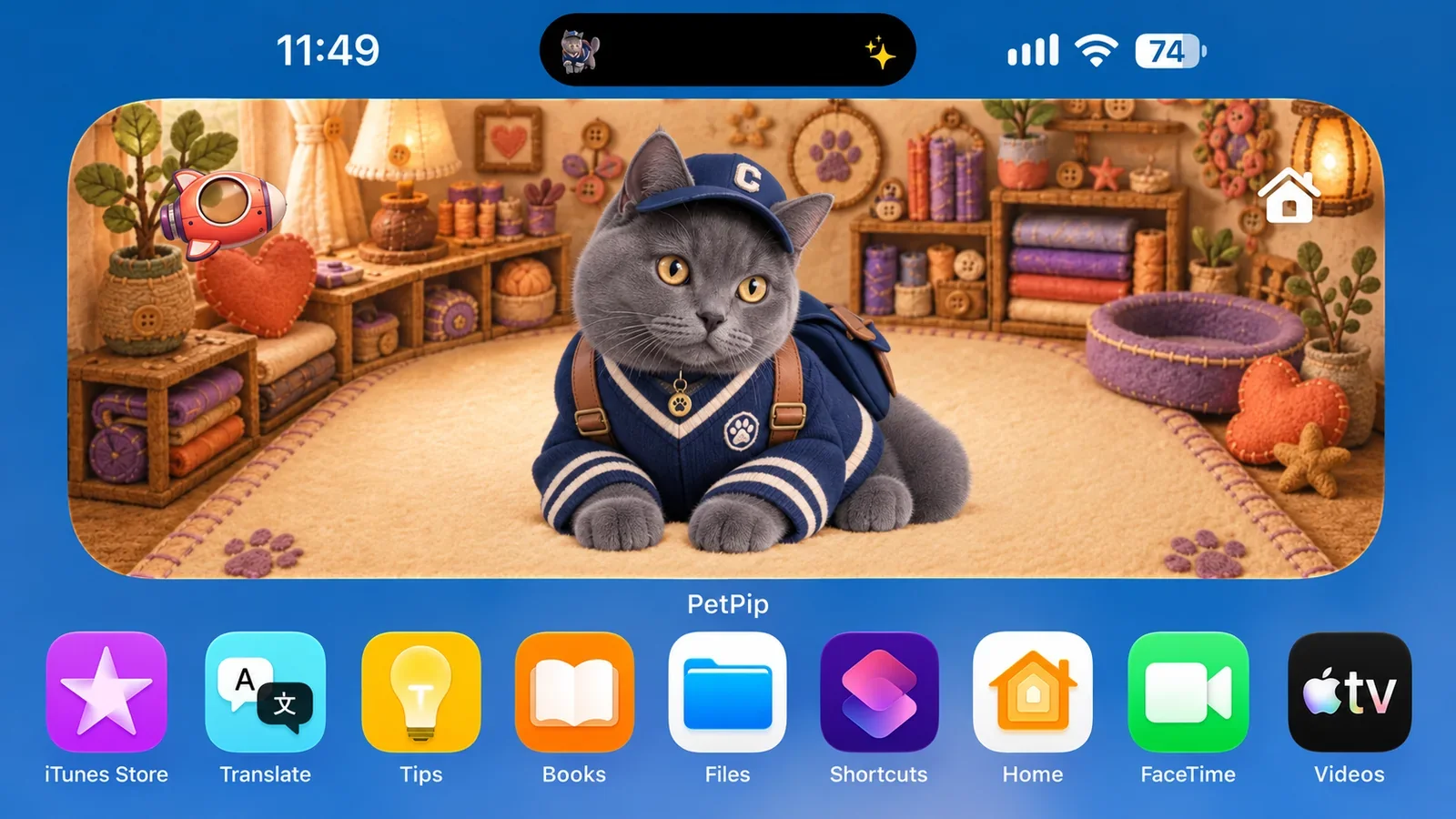
Yes—you can keep a little PetPip companion close on iPhone. Give it a room beside your app icons, see a familiar face when you check the Lock Screen, or spot it in Dynamic Island on a phone that has one.
If you searched for “Shimeji for iPhone” after seeing a pet walk across someone’s apps, there is one useful difference to know: PetPip’s iPhone pet stays in these familiar places rather than wandering over every app. For that roaming style of company, PetPip has a floating pet on Android.
What does “walking pet” mean in the video you saw?
Clips can show several experiences that look similar at a glance:
- a desktop character moving across computer windows;
- an Android pet joining someone while they use other apps;
- an iPhone widget occupying a Home Screen space;
- a Live Activity on an iPhone’s Lock Screen or Dynamic Island.
Ask which part caught your eye: the pet’s face, having it nearby, or watching it move around while you use your phone. That helps you find an experience you will actually enjoy rather than chase a setup that belongs to a different phone.
You can try the iPhone options below with the regular PetPip app.
Choose the iPhone space that suits your day
| Where you want to see your pet | PetPip option | What to expect |
|---|---|---|
| Beside your everyday app icons | Home Screen widget | A little room where your companion is easy to find |
| When checking your locked phone | Lock Screen Live Activity | A quick hello without opening PetPip |
| At the top of an iPhone with Dynamic Island | Dynamic Island pet | A smaller companion nearby as you use the phone |
| Moving around while you use other apps | Android floating pet | A movable visitor with peeking and spacecraft moments |
A Home Screen widget: a familiar place to look
A widget works well when you want your pet to have a regular spot beside your apps. You do not have to keep PetPip open to revisit that part of the Home Screen.
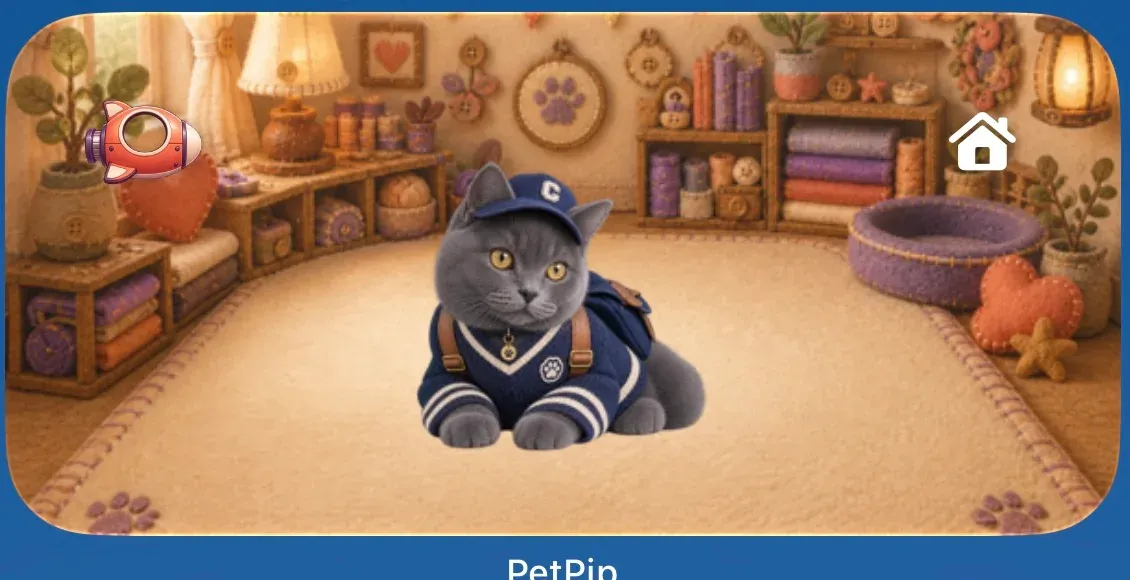
A little room for your companion, right beside the apps you use every day.
Use the iPhone widget setup guide to add yours. If it still shows a previous companion, open Paws and check your selection before returning to the Home Screen.
A Live Activity: a glance on the Lock Screen
Turn on Show on screen in Paws when you would like the pet to join a quick look at your Lock Screen. On iPhones with Dynamic Island, it can also keep you company at the top of the phone.

A smaller glimpse of the same companion in Dynamic Island.
If that glimpse disappears later, return to Paws and start it again. Keep the Home Screen widget too if you would like a regular place to look for your pet.
What makes the companion yours?
Screen placement answers “where”; the source of the character answers “why this pet?” In PetPip, you can begin with a real pet photo, draw a character in the app, or choose an official companion. The result continues into hatching, care, touch, focus time, and growth.
The part that makes you smile may be a familiar ear shape, a coat pattern, or a strange little doodle you made yourself. A place on the Home Screen gives that personal detail a chance to become part of your day.
What if you specifically want a floating pet?
If you particularly enjoy moving a pet around while using other apps and watching it take a spacecraft ride, PetPip’s Android floating-pet guide shows that experience.
If you mainly want to see your companion when you unlock your iPhone or return Home, start with its little room. The best place for it is somewhere you will naturally look again tomorrow.