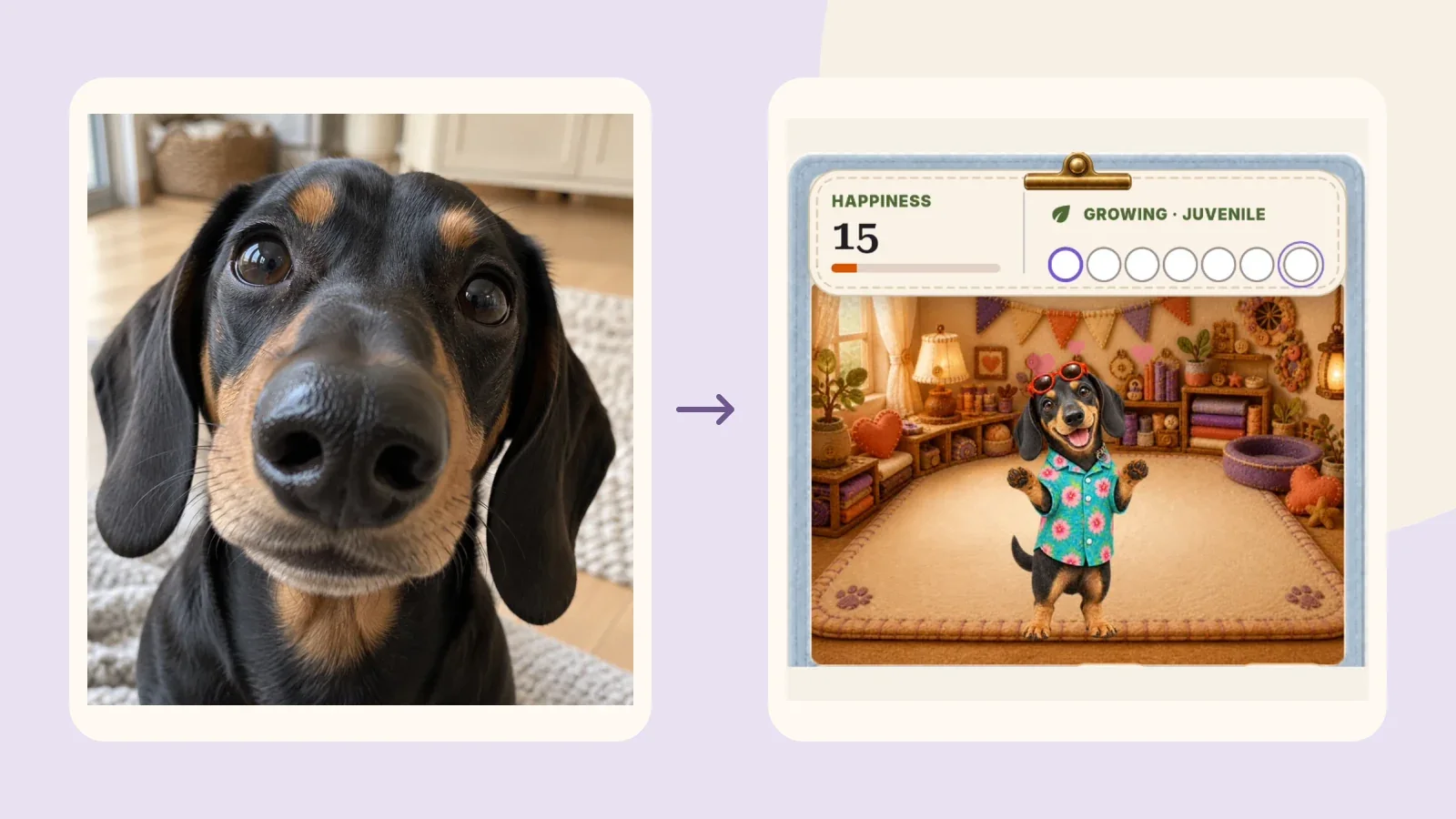
If your AI pet does not feel like your pet, check three things before creating again: did you select the intended photo, can you see the features you care about in that photo, and is the difference in the pet’s identity or its artistic style? Compare the finished companion with the original, focusing on one or two details you would recognize anywhere.
You do not need to replace a meaningful, funny photo with a perfectly posed portrait. The goal is to work out what feels missing before spending another creation credit, not to keep generating until a character happens to look right.
1. Check the photo you actually selected
Open the finished companion in Paws and compare it with the original file you selected. If there are several similar photos in your album or several companions in Paws, check that you have the intended pair.
| What you notice | A useful check |
|---|---|
| The wrong animal seems to be the subject | Is there more than one pet in the selected frame? |
| A marking has disappeared | Can you actually see it in this photo, or do you know it from other photos? |
| One ear or part of the face is missing | Is that feature outside the selected image or hidden behind something? |
| Colors feel wrong | Is the source very dark, strongly tinted, or heavily filtered? |
| The character feels too polished | Was the odd expression or distorted angle the part you wanted to preserve? |
These checks help you decide whether another photo could communicate your intention more clearly. They cannot establish why a particular AI result changed.
Still choosing a style? The animals on the style cards are examples, not your finished companion. Judge your own result once creation is complete and it appears in Paws.
2. Name the detail that makes the pet yours
“It looks different” is a real reaction, but it can hide several separate questions. Try making the difference specific:
- Identity: did the dark ears, tan eyebrows, or white patch carry through?
- Expression: is the sleepy squint or enormous grin still there?
- Proportions: did a wide-angle nose or very long ears become less exaggerated?
- Styling: are the new clothes, materials, or pose distracting from features that are still recognizable?
Choose the one or two that matter most to you. A new outfit and a missing face marking are different issues, even when both make the character feel unfamiliar at first.
3. Compare what actually carried through
Here is an internal PetPip example: a source image from a social creative project paired with its companion captured in the App.
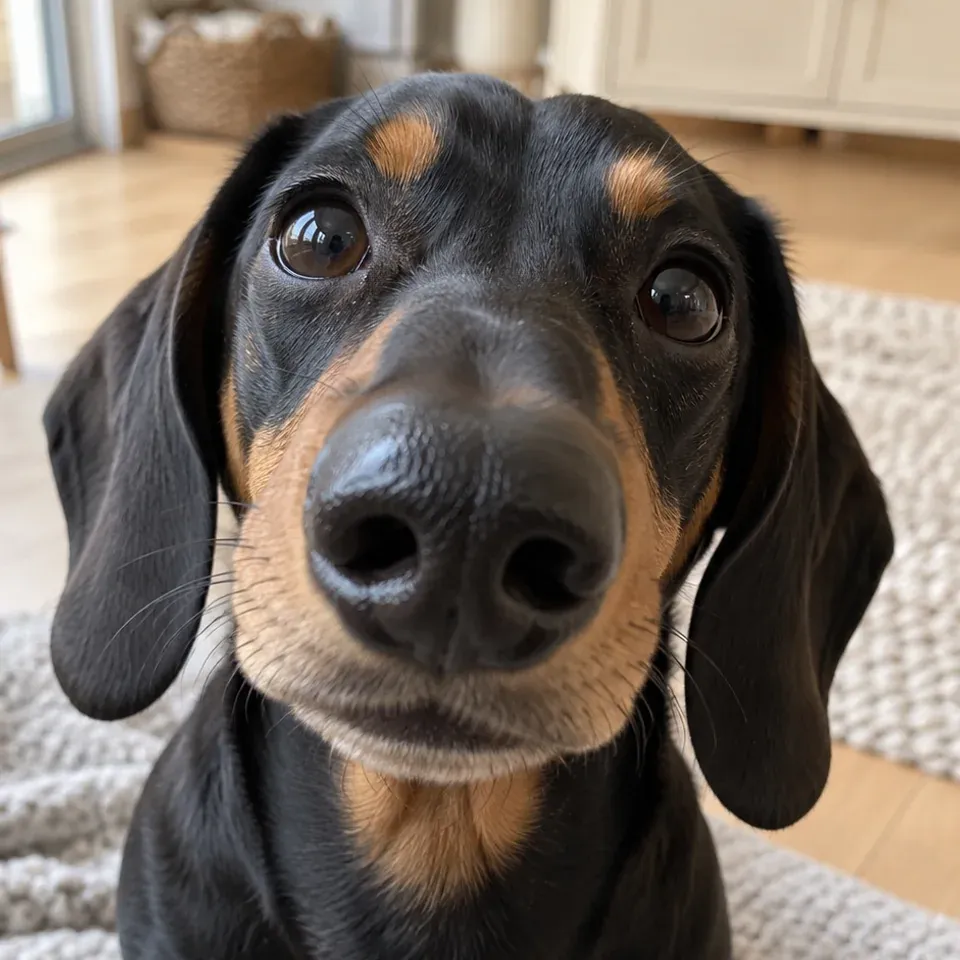
Source image
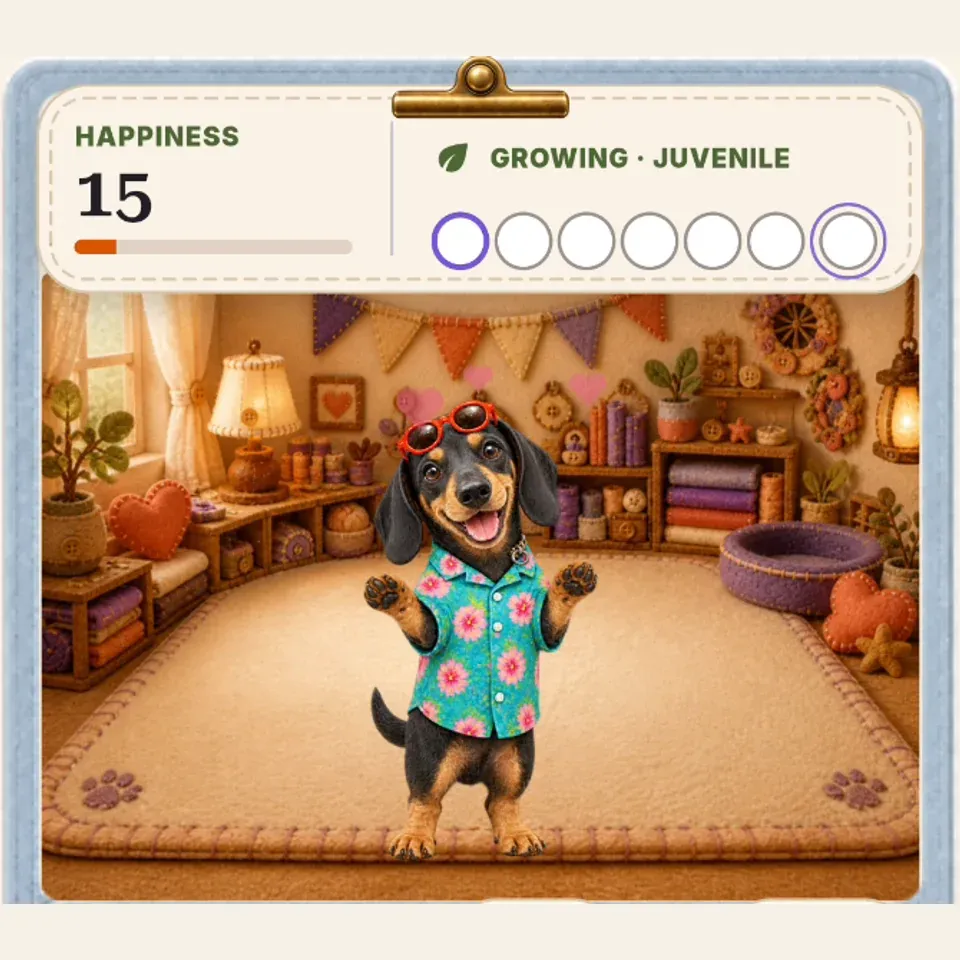
Actual companion
In this example, the clothes are new, but several identifying details remain. That may be enough for someone who wants a playful little version of the dog. It may not be enough for someone who wanted the exact original pose.
Another existing recording shows a golden retriever created from a deliberately exaggerated close-up:
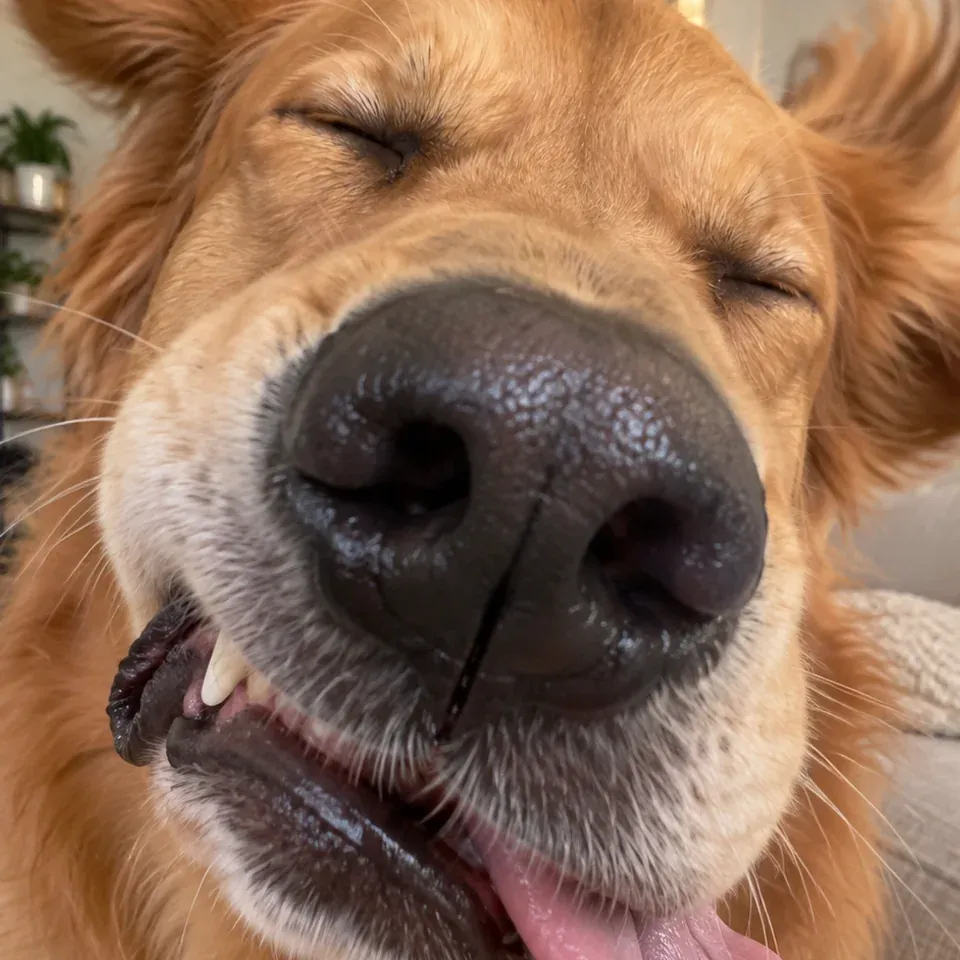
Source image
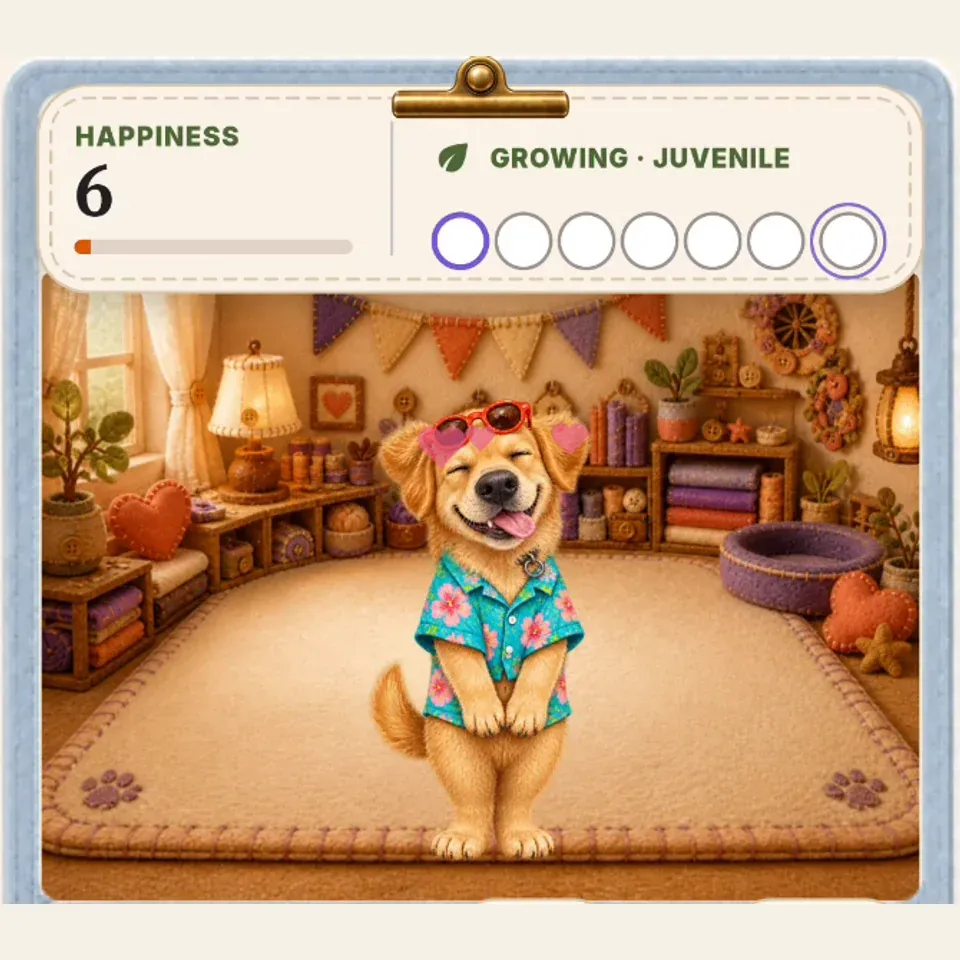
Actual companion
If that enormous nose was your favorite part, it is reasonable to notice its reduced emphasis. A recognizable interpretation is not the same thing as preserving every exaggeration. Keep the source photo as the exact record of that moment.
4. Keep the meaningful detail in view
You can use your phone’s photo editor to make a separate crop with one obvious subject, if that helps. Do not crop out the strange ear or funny nose that made the photo meaningful. Keep the original untouched. The meaningful-photo guide explains why an unusual moment can be a good starting point.
5. Change one thing, only if another attempt is worthwhile
Before creating again, choose a specific intention: use the correct file, include the hidden ear, or try an available style whose example is closer to the kind of character you want.
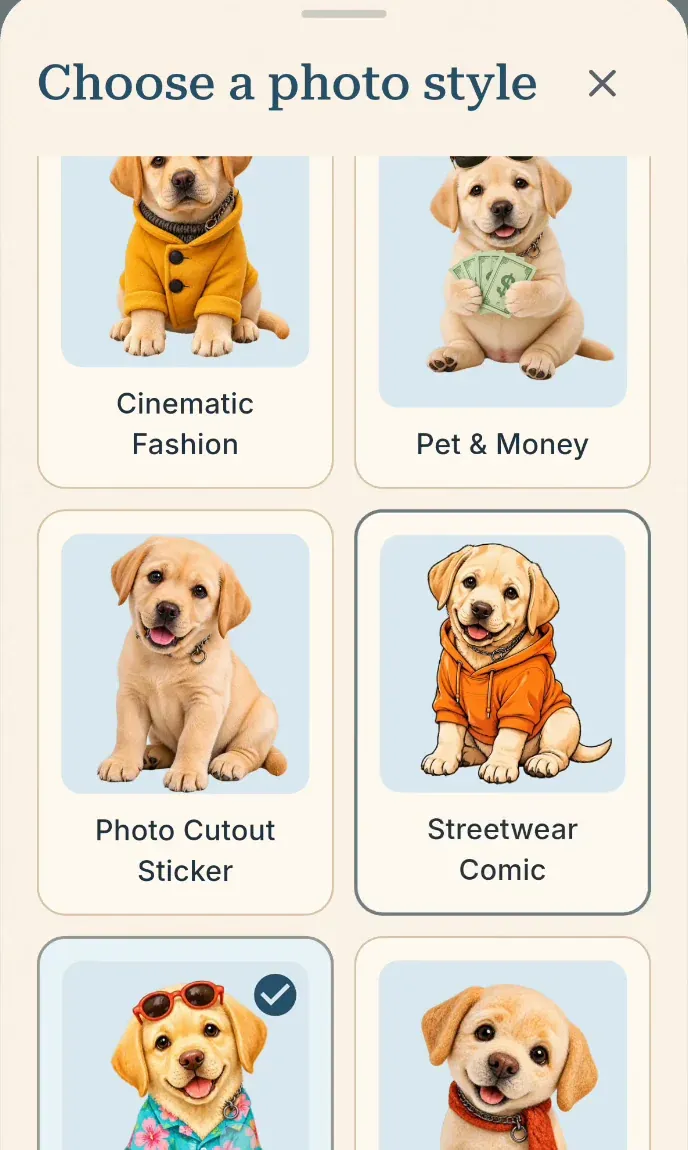
Style cards in a product recording: use them to compare artistic directions before creating.
Style examples show possibilities, not a guarantee of a particular face, accessory, or marking. No choice promises an exact copy, and repeating the same request does not promise a better result.
Check the generation allowance and the confirmation in the App first. Personal AI creation requires an internet connection and available credits. You do not need to delete the companion you already have just to consider another source image.
Changing a name, room, or spacecraft can make an existing companion feel more personal, but it does not repair a missing face marking. Keep that distinction in mind when deciding what to adjust.
6. Keep what works, or ask a specific question
If the main familiar details are there and you enjoy seeing the character, it is fine to keep a stylized result. If the detail that matters most is missing, it is also fine to stop rather than spend more credits chasing a promise the tool cannot make.
For a suspected wrong-image or creation problem, use PetPip Support. Describe what you selected, what appeared, and the specific difference. A screenshot and your App version can help; only share a source photo if you are comfortable doing so. Do not send passwords or payment details.
For the full creation sequence, return to the photo-to-pet guide. This checklist is for the moment after creation, when the important question is not “Is it a perfect picture?” but “Does it still feel connected to my pet?”